
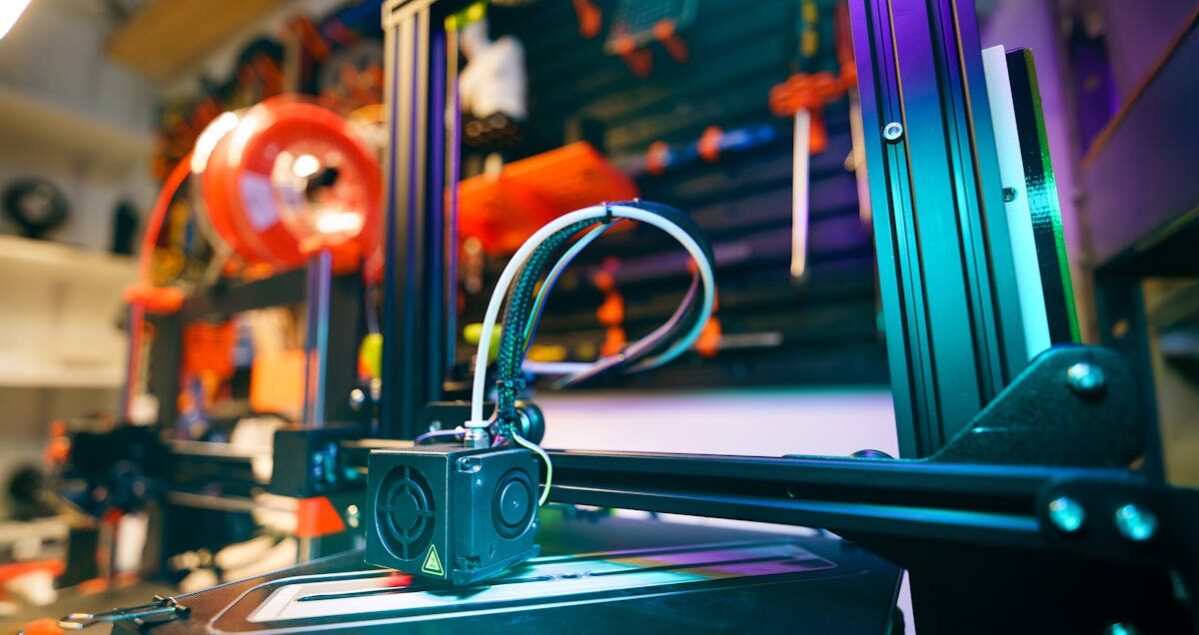
Why Print Your Own Deck Box?
A mass-produced deck box is fine. A 3D printed deck box is yours.
When you print your own TCG deck box, you control the size, the color, the logo, and the details. You can match your sleeve color, print your favorite character’s jolly roger, or build a box that fits double-sleeved cards perfectly without rattling. No settling for whatever happens to be on the shelf at your local game store.
And honestly? For One Piece Card Game and Magic: The Gathering players especially, the 3D printed deck box community is massive. People have been designing and sharing boxes for years, and the quality of available files has never been better.
Here is everything you need to print your first one.
What You’ll Need
- An FDM 3D printer (any brand)
- PLA filament in your chosen colors
- A slicer (Bambu Studio, PrusaSlicer, or Cura)
- An STL or 3MF file for the deck box
- About 2-4 hours of print time depending on the design
That’s it. No special tools, no advanced setup. If you can print anything, you can print a deck box.
Sleeve Sizing Matters
Before you download a file, know your sleeve situation:
- Unsleeved: Standard card is 63 x 88mm
- Single sleeved: Approximately 65 x 90mm
- Double sleeved: Approximately 68 x 93mm
Most deck boxes are designed for one of these configurations. Always check the product listing to confirm which sleeve format the box was built for. OreKo deck boxes list compatibility clearly on each product page.
Single Color vs Multi-Color
You have two main options for adding logos and artwork:
- Single color: Print the entire box in one filament. Clean and simple.
- Multi-color (AMS): Print the box body in one color and the logo cap in another automatically. Requires a multi-filament system like the Bambu AMS.
- Two separate pieces: Print the logo cap separately in a different color and press-fit or glue it onto the box. Works on any printer.
The Print Process Step by Step
1. Choose Your File
Find a deck box designed for your card game and sleeve size. The OreKo deck maker set includes boxes for One Piece Card Game (single and double sleeve) with multiple logo options.
2. Set Up the Slicer
Open Bambu Studio, PrusaSlicer, or Cura. If you have a Bambu 3MF file, drag it in and the settings are already configured. For STL files, import and set your parameters manually.
3. Use the Right Settings
For the box body: 0.20mm layer height, 10-15% infill, 2 wall lines. For logo caps and detail pieces: 0.08-0.12mm layer height, 100% infill. No supports on well-designed deck box files.
4. Print in Parts
Most deck boxes print as two or more separate pieces: the box body and the cap. Print them separately, especially if you want different colors. Assembly is easy and usually requires no glue.
5. Test Fit Before Finishing
Before you declare it done, load your sleeved deck and test the fit. The lid should snap on with light pressure and open with moderate force. If it is too tight, reprint at 99% scale. Too loose, try 101%.
Recommended Print Settings for Deck Boxes
| Setting | Box Body | Logo Cap |
| Layer Height | 0.20mm | 0.08-0.12mm |
| Infill | 10-15% | 100% |
| Wall Lines | 2-4 | 2 |
| Top/Bottom Layers | 5 top / 3 bottom | 9 top / 7 bottom |
| Supports | None | None |
| Filament | PLA | PLA |
| Print Time | ~90-120 min | ~30-60 min |
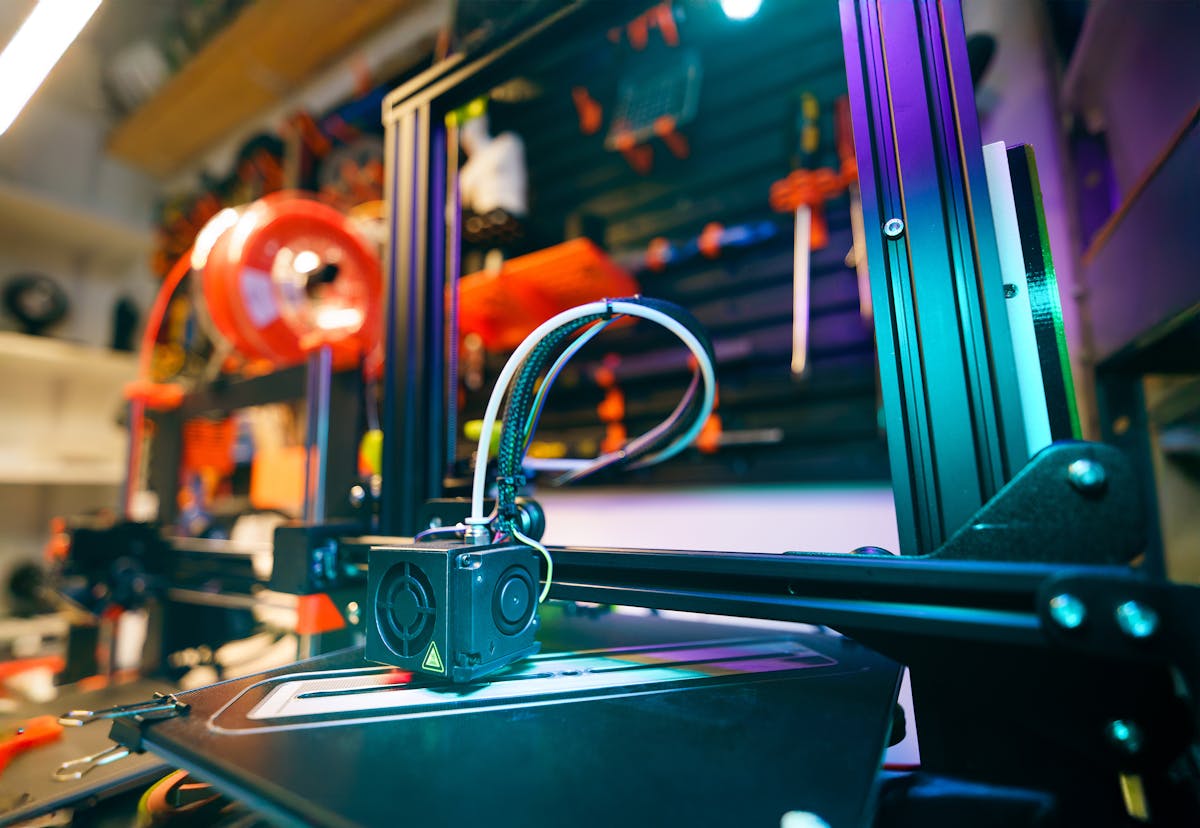
Getting the Best Logo Detail
The logo cap is the showpiece of any deck box. Getting it right is worth the extra print time.
Go thin on layer height. The difference between 0.20mm and 0.08mm layer height on a logo cap is dramatic. Fine details like the One Piece skull, the Gear 5 sun rays, or the MTG mana symbols come out sharp at 0.08mm and soft at 0.20mm. It takes longer, but on a piece this small the extra hour is worth it.
Max out your infill. Logo caps are small. Printing them at 100% infill adds almost no print time but means every raised detail is backed by solid material. At 15% infill, fine features can collapse or look hollow.
Color contrast is everything. A black box with a white or gold logo cap makes the artwork pop. If you only have one color, try printing the cap in a contrasting shade and press-fitting it onto the box.
Common Deck Box Problems and Fixes
The lid doesn’t fit / is too tight. Reprint at 98-99% scale. FDM printers have slight dimensional tolerances that vary by machine. A small scale adjustment fixes most fit issues without redesigning the file.
The logo detail is blurry. Drop to a lower layer height (0.12mm or lower) and increase infill to 100% on the cap piece. Also check that your nozzle is clean with no partial clogs.
The box walls flex too much. Increase wall lines from 2 to 4 or 6. More perimeters add stiffness without changing the overall size significantly.
The bottom has elephant foot (flared base). Reduce first layer flow or enable elephant foot compensation in your slicer. Most modern slicers have this as a dedicated setting.
Stringing inside the box. Likely a retraction issue. Increase retraction distance slightly and lower print temperature by 5°C on the next attempt.
OreKo Deck Boxes: Ready to Print
All OreKo deck box files are pre-tested on Bambu Lab printers. Every file includes the recommended print settings and comes with Bambu Studio 3MF files with plates and colors already configured. If you have a Bambu X1C, A1, or A1 Mini, you can be printing within minutes of downloading.
For single-color printing on any FDM printer, the individual STL files work on every machine. Just enter the settings from the product page and go.
Print Your Own Deck Box
Browse OreKo’s card game accessories on Cults3D. One Piece, MTG, and more. STL and Bambu 3MF files included.