What Is Slicing in 3D Printing?
Slicing converts your 3D model into the layer-by-layer instructions your printer follows. Every setting you choose in the slicer directly affects print quality, speed, and strength.

Slicing converts your 3D model into the layer-by-layer instructions your printer follows. Every setting you choose in the slicer directly affects print quality, speed, and strength.
A 3D model file is just geometry — it describes the shape of an object but says nothing about how to build it. A slicer takes that geometry and translates it into a set of instructions the printer can execute: where to move, how fast, how much material to extrude, when to heat up, when to cool down.
The output of a slicer is a G-code file. That file contains thousands of lines of precise commands that run from the first layer to the last. Every print setting you adjust in the slicer changes something in that G-code.
Choosing the right slicer and understanding its key settings is where the difference between a good print and a great print actually lives.
Open your STL or 3MF file in the slicer. The model appears on a virtual build plate matching your printer’s dimensions.
Choose layer height, infill, supports, temperature, speed, and other settings. The slicer applies your choices to the entire model or selected regions.
The slicer divides the model into horizontal layers at the height you specified. For a 100mm tall object at 0.20mm layers, that is 500 separate slices.
The slicer generates a G-code file from all the slices and settings. This file transfers to your printer via SD card, USB, or wireless connection.
The thickness of each printed layer. Thinner layers (0.08-0.12mm) produce finer detail and smoother surfaces. Thicker layers (0.20-0.30mm) print faster but show more visible lines. For OreKo logo caps and miniature details, 0.08-0.12mm is the recommended range.
The internal fill pattern and density inside a solid-looking model. 100% infill is completely solid. 15% is mostly hollow with a sparse grid inside. Functional parts that need strength use higher infill. Display pieces use lower infill.
Temporary printed structures the slicer generates under overhanging sections. Removed after printing. A well-designed model minimizes or eliminates the need for supports — all OreKo models are tested to print without supports in their provided orientations.
How fast the print head moves. Higher speeds reduce print time but can reduce quality. Most modern printers like Bambu Lab handle high speeds reliably. Older machines like the Ender 3 produce better results at more conservative speeds.
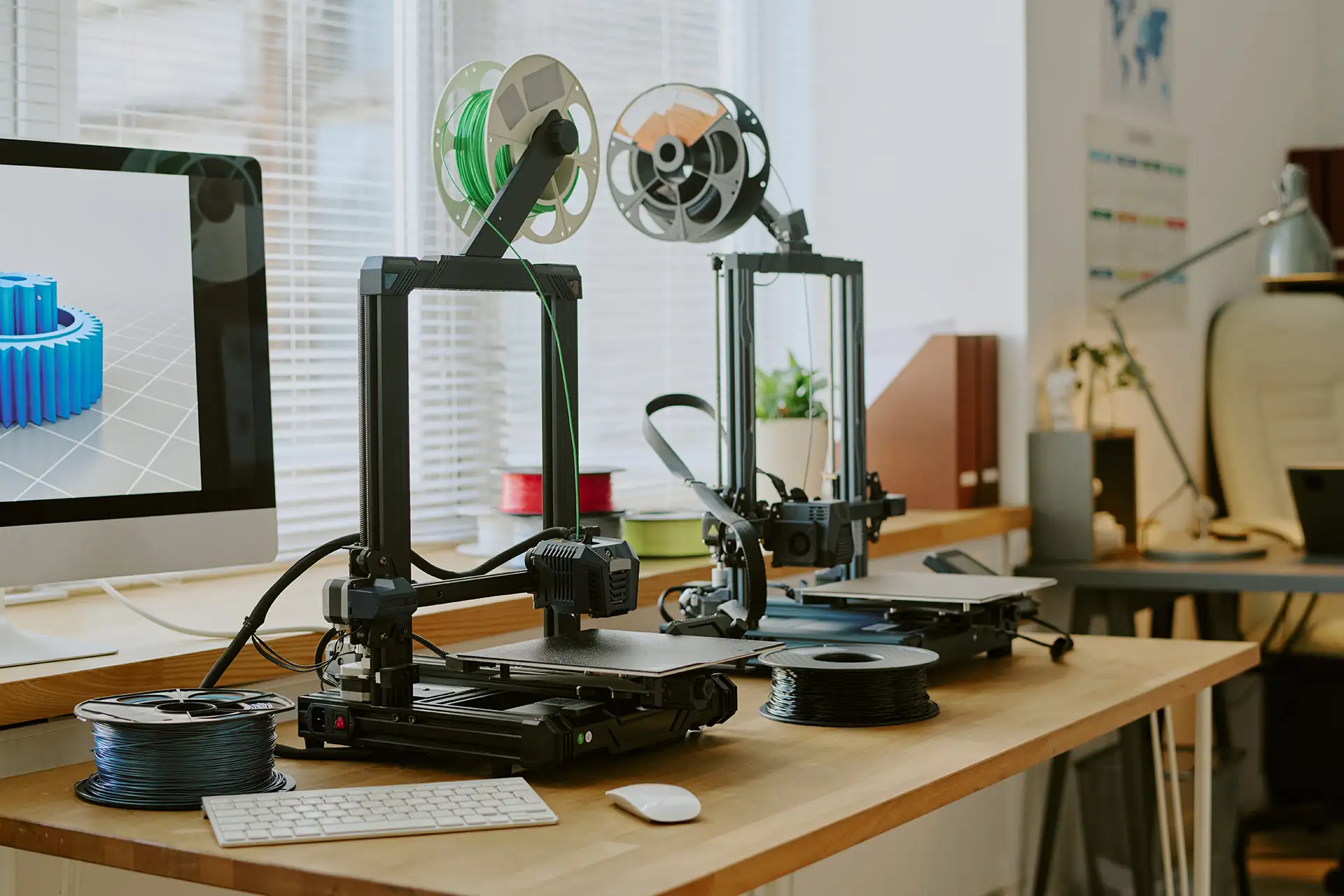
The temperature the hot end reaches to melt the filament. PLA typically prints at 190-220°C. PETG at 230-250°C. Too low causes under-extrusion. Too high causes stringing. Most slicers have preset profiles per filament type.
The temperature of the build plate surface. PLA often prints without a heated bed or at 40-60°C. PETG benefits from 70-85°C. A correctly heated bed dramatically improves first layer adhesion.
How many perimeter lines the slicer draws around the outside of the model. More walls mean stronger outer shells. For structural parts like deck box bodies, 4-6 walls is recommended. For display pieces, 2 walls is usually sufficient.
The slicer you use depends on your printer. Most are free.
The official slicer for Bambu Lab printers. Best-in-class automatic support generation, multi-color AMS setup, and one-click printer profiles. OreKo 3MF files are pre-configured for Bambu Studio — open the file and slice without manual settings changes.
Best for: Bambu Lab X1C, A1, P1S, A1 Mini
Free, open-source, and widely regarded as the most feature-complete slicer available. Originally built for Prusa printers but supports hundreds of machines. Detailed control over every print parameter. Excellent for intermediate and advanced users.
Best for: Prusa MK4, MINI+, and any FDM printer
The most widely used slicer globally with the largest community. Straightforward interface in basic mode, deep settings in expert mode. Supports virtually every FDM printer through community profiles.
Best for: Creality Ender 3, any entry-level FDM printer
Every OreKo model page on this site documents the exact slicer settings used during testing: layer height, infill percentage, wall count, supports (none required), and first layer height. When you download an OreKo file and see settings like “0.08mm layer height, 100% infill, 9 top layers, 7 bottom layers” — those numbers come from real prints, not generic recommendations.
The included Bambu Studio 3MF files take this further. Open the 3MF in Bambu Studio and the settings are pre-applied to each component. For multi-color models like the Eldrazi Incursion deck box mana chips, filament color assignments are already configured. You load your filament, hit slice, and print.
The single setting that most affects surface quality. Learn when to go fine, when to go fast, and why 0.12mm is often the sweet spot.
What infill patterns mean, which percentage to use for different applications, and why 100% infill is sometimes exactly right.
What happens inside the printer once the G-code file arrives. The full process from first layer to finished print.
Every model page documents the exact settings used. Download, open in your slicer, apply the settings, and print.