What Is 3D Modeling?

3D modeling is where every print begins. Before a printer can build anything, a designer has to create a digital version of the object in three dimensions. This guide explains what 3D modeling is, which software to use, and how to get started even if you have never touched design software before.

What Is a 3D Model?

A 3D model is a digital object with length, width, and depth. It exists inside design software as a three-dimensional shape that can be viewed from any angle, scaled to any size, and exported as a file format a 3D printer can read.

Most hobbyist printers use two file formats: STL (Standard Tessellation Language) and 3MF (3D Manufacturing Format). STL defines the shape as a mesh of triangles. 3MF is a newer format that also carries colour assignments, print settings, and multi-material plate layouts. When you download a file from Cults3D or Printables, you are downloading one of these formats.

You do not need to design your own models to 3D print. Thousands of ready-made files exist on platforms like Cults3D. But if you want to design your own objects, the tools to do it are more accessible than they have ever been.

The Three Levels of 3D Modeling Software

From complete beginner to professional designer, there is a tool built for your level.

🚀 Beginner

TinkerCAD

Free, browser-based, and genuinely designed for people who have never modeled anything. TinkerCAD uses simple shape primitives you drag, resize, and combine. You can build a usable model in your first session. No download, no setup. Perfect for designing phone stands, name tags, replacement parts, and basic functional prints.

Best for: Absolute beginners, kids, quick functional designs

🔨 Intermediate

Fusion 360

The most widely used parametric modeler in the hobbyist and professional maker community. Fusion 360 lets you design with precise measurements, create mechanical assemblies, and generate engineering-grade parts. Free for personal use with some limitations. Runs on Mac and Windows. The learning curve is steeper than TinkerCAD but the capability ceiling is dramatically higher.

Best for: Functional parts, mechanical assemblies, precise dimensions

🎨 Creative

Blender

Free, open-source, and capable of producing film-quality 3D models. Blender is sculpting and organic modeling software rather than engineering software. Use it for character models, artistic pieces, props, and anything with complex curved surfaces. The interface takes time to learn but the results are extraordinary. All OreKo model artwork and organic design elements are created in tools like Blender.

Best for: Characters, props, artistic models, cosplay pieces

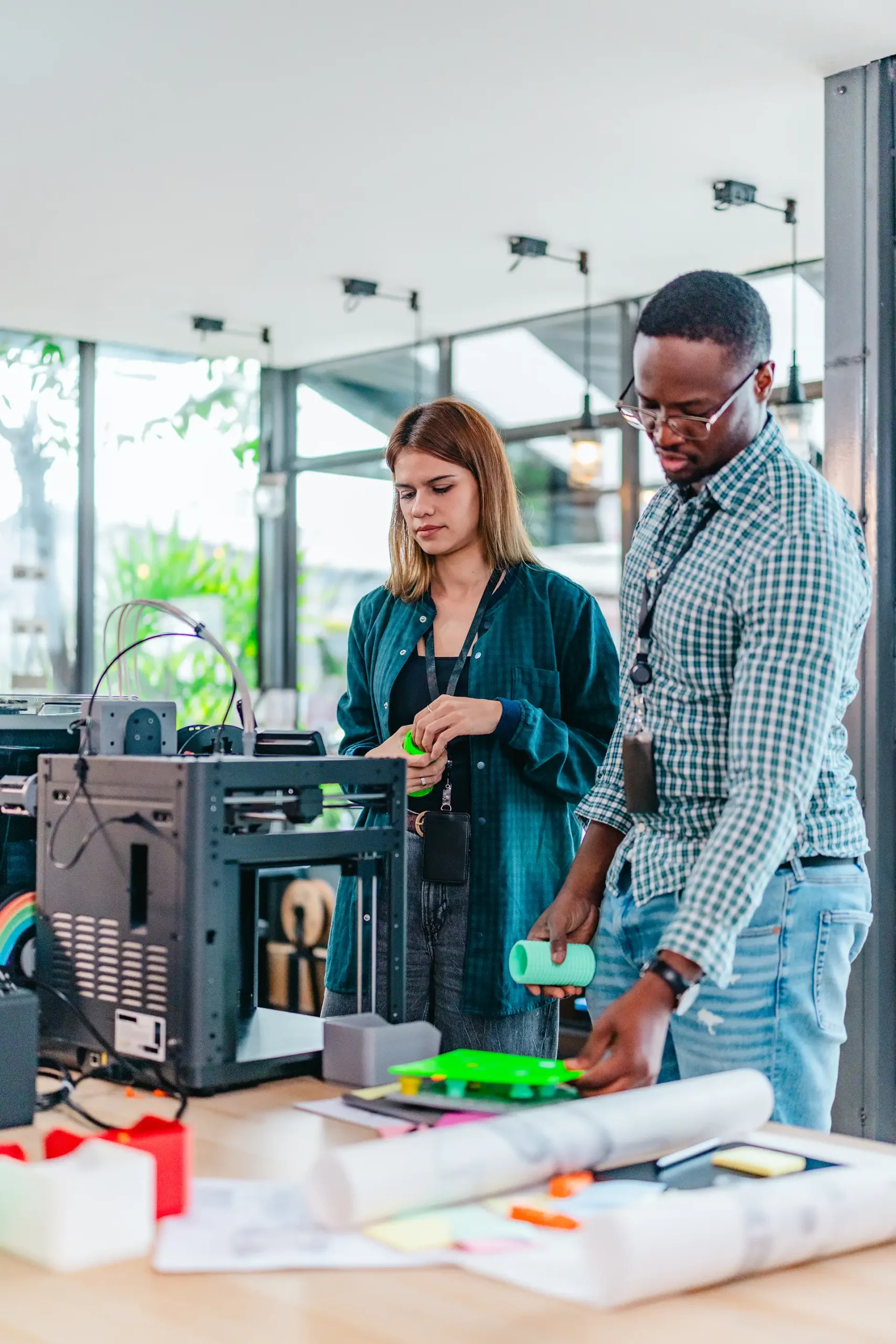
Two colleagues collaborating on a 3D printing project in a professional workshop

From Digital File to Physical Object

Once you have a 3D model, the path from file to printed object follows three steps:

  1. Export the model as an STL or 3MF file from your design software
  2. Import it into your slicer — software like Bambu Studio or PrusaSlicer that converts the 3D model into printer instructions
  3. Send it to your printer and watch it build layer by layer

The quality of your final print depends on the quality of the original model. A well-designed file with correct tolerances, proper wall thicknesses, and smart orientation prints cleanly the first time. A poorly designed file — or one that was never physically tested by the designer — can fail repeatedly regardless of your printer or settings.

This is why every OreKo model is designed, physically printed, and tested before publishing. The settings documented on each product page are not guesses. They come from real prints on real printers. See our guide on how to spot a quality STL file before you download.

Key 3D Modeling Concepts for 3D Printing

Wall Thickness

Every surface in a 3D model needs a minimum wall thickness to print reliably. Too thin and the printer cannot deposit material accurately, leading to holes or collapses. A practical minimum for FDM printing is 1.2mm for structural walls and 0.8mm for decorative features. Your slicer will warn you about walls that are too thin to print.

Overhangs and Supports

FDM printers deposit material on top of existing layers. Sections of the model that extend outward beyond roughly 45 degrees from vertical have nothing beneath them — these are called overhangs. If the overhang is too steep, the plastic droops or collapses. Models can be designed to avoid overhangs entirely, or supports can be added in the slicer to hold them up during printing.

Tolerances for Assembled Parts

When designing parts that will snap together, press-fit, or slide against each other, you need to account for the dimensional accuracy of your printer. A hole designed at exactly 5mm will print slightly smaller due to material expansion as it cools. Standard practice is to add 0.1mm to 0.2mm clearance to mating dimensions. This is called tolerance and it takes a few test prints to dial in for your specific printer and filament.

Mesh Integrity

A 3D model for printing must be a closed, watertight mesh with no holes, no overlapping faces, and no reversed normals. Design software generally maintains this automatically, but imported files or models converted from other formats can have mesh errors. Most slicers detect and attempt to repair these automatically. For complex models, a dedicated mesh repair tool like Meshmixer can fix problems before slicing.

Continue Learning

3D modeling is the first step. Here is what comes next in the process.

Slicing a 3D Model

Your model file goes into a slicer before it can print. Learn what slicing does, which software to use, and the key settings that affect your print quality.

The Printing Process

What actually happens during a print, from the first layer to the final one. How FDM builds objects and what to watch for when a print is running.

Filament Guide

PLA, PETG, ABS, TPU and more. Which filament is right for which job, and what settings each one needs to print reliably.

Skip the Design Step

Every OreKo model is already designed, tested, and ready to print. Download the file, open it in your slicer, and start printing.