3D Printing File Formats Beyond STL: OBJ, AMF, STEP, 3MF, and More

STL is the universal standard but it is not the only format your slicer and printer understand. Here is what each alternative format does, when it is the right choice, and which slicers and tools support it.

Why Other Formats Exist

STL was designed in 1987 for a single purpose: describing the surface geometry of objects for stereolithography machines. It does that job reliably. What it cannot do is carry color, material, scale, print settings, or assembly information. See the full breakdown: STL File Limitations.

Every format in this guide exists to address at least one of those gaps. Some are general-purpose 3D formats that pre-date 3D printing entirely. Others were designed specifically for additive manufacturing. None has displaced STL as the universal standard, but each has specific use cases where it is genuinely the better choice.

Format Overview

Format Full Name Created Color Units Print Settings Primary Use
STL Stereolithography 1987 No No No Universal 3D printing standard
3MF 3D Manufacturing Format 2015 Yes Yes (mm) Yes Modern 3D printing, multi-color
OBJ Wavefront Object 1980s Yes (via MTL) No No 3D graphics, color models
AMF Additive Manufacturing File 2011 Yes Yes Partial Designed STL successor, limited adoption
STEP Standard for Exchange of Product Data 1994 No Yes No CAD exchange, editable geometry
IGES Initial Graphics Exchange Spec 1980 No Yes No Legacy CAD exchange
G-Code Geometric Code 1950s N/A Yes Yes (fully) Direct printer instruction file
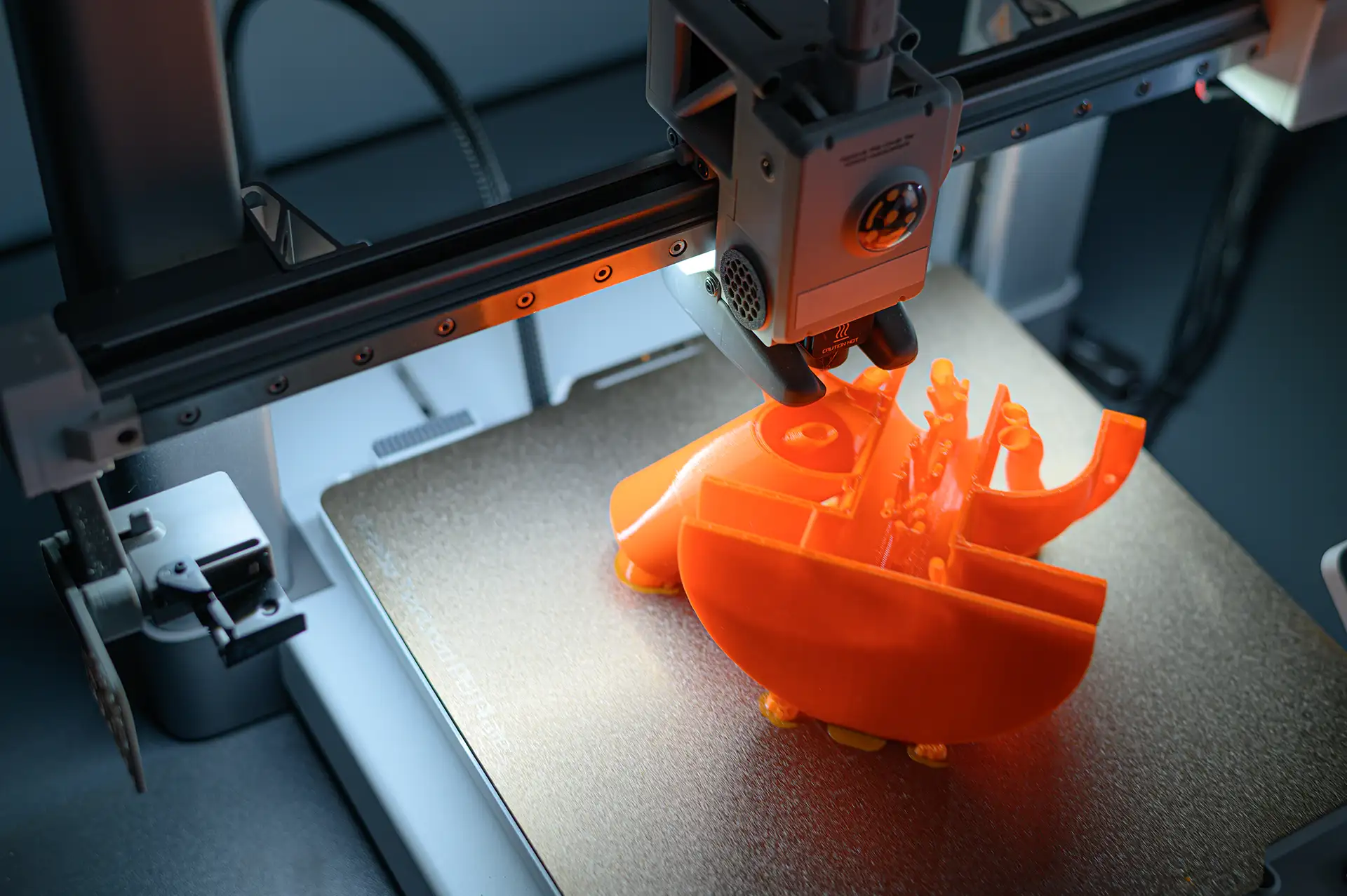
3D printer creating an intricate orange object showing complex geometry and fine detail capability

3MF: The Modern Standard

3MF (3D Manufacturing Format) is the most important alternative to STL for everyday 3D printing. Developed by the 3MF Consortium in 2015 with backing from Microsoft, Autodesk, HP, and Stratasys, it was designed explicitly to replace STL by adding everything STL lacks.

A 3MF file is a ZIP archive containing XML files that describe geometry, color assignments, material properties, units (always millimeters), and print settings. Unlike STL, it supports multi-part assemblies with part positions, thumbnail previews, and slicer-specific configuration data.

In practical terms, the clearest advantage of 3MF is multi-color AMS printing on Bambu Lab hardware. Bambu Studio 3MF files carry the complete color assignment data for every region of every part. Open the file and the slicer knows exactly which filament goes where. The STL workflow for the same multi-color print requires manual region painting in the slicer.

Support is widespread: Bambu Studio, PrusaSlicer, Cura, and all modern slicers handle 3MF. Note that slicer-specific settings embedded in a 3MF (such as Bambu process profiles) do not transfer correctly between different slicer applications. Geometry and units transfer reliably everywhere.

Full comparison: 3MF vs STL.

OBJ: Color and Texture Support

OBJ (Wavefront Object Format) is a mesh format that predates modern 3D printing by decades. It was developed by Wavefront Technologies in the late 1980s for 3D computer graphics and animation. It became widely adopted in the 3D graphics world and carried that momentum into 3D printing as the format that supports basic color information.

OBJ stores geometry as a list of vertices and faces — similar to STL but supporting polygons beyond just triangles. Color and texture data are stored in a separate companion file called an MTL (Material Template Library) file that the OBJ references. This means a colored OBJ is always two files: the .obj and the .mtl.

For 3D printing, OBJ is used when a model has color or texture information that needs to be preserved. Full-color 3D printing on powder bed or inkjet systems often uses OBJ for its color support. For standard FDM and resin printing where color comes from the filament or material, OBJ offers no practical advantage over STL.

OBJ: Key Facts

  • Color support: Yes, via .mtl companion file
  • Units: No unit information (same limitation as STL)
  • Print settings: None
  • File structure: Human-readable text format
  • Slicer support: All major slicers import OBJ
  • When to use: When your model has color or texture maps that need to accompany the geometry, particularly for full-color printing systems
  • When NOT to use: For standard single-material FDM printing. STL is simpler and equally capable.

AMF: The STL Successor That Never Took Over

AMF (Additive Manufacturing File Format) was developed in 2011 by ASTM International specifically to replace STL. It addresses every major STL limitation: AMF supports color, material assignments, scale and units, curved surface geometry, and basic print settings. It is stored as XML, making it human-readable and extensible.

On paper, AMF is a better format than STL in almost every way. In practice, it never achieved widespread adoption. The 3MF Consortium launched in 2015 with more industry backing and broader software support, and 3MF effectively took the position AMF was designed to fill. Most slicers and tools that support AMF also support 3MF, and 3MF has more active development and community support.

You will encounter AMF files occasionally, particularly from older CAD software exports or academic and research contexts where ASTM standards are referenced. All major slicers can import AMF. For new work, 3MF is the better choice with more consistent cross-application support.

STEP: When You Need Editable Geometry

STEP (Standard for the Exchange of Product model data, ISO 10303) is the standard format for exchanging CAD models between professional software applications. Unlike STL, OBJ, and AMF which describe a frozen mesh, STEP preserves parametric geometry: curves are represented as true mathematical curves, not triangle approximations.

A sphere exported as STEP is a mathematical sphere. The same sphere exported as STL is an approximation made of many small flat triangles. The STEP version can be imported into any CAD application and edited as a true parametric object. The STL version can only be manipulated as a mesh.

For 3D printing, STEP is not a print format. You cannot send STEP directly to a printer. Its role in the printing workflow is as a design exchange format: when you receive a STEP file from an engineer or client, you import it into Fusion 360 or FreeCAD, make any necessary modifications, and then export to STL or 3MF for slicing.

STEP is the correct format when someone needs to modify your design. If you are sharing a model with another designer who might need to change dimensions, wall thicknesses, or features, provide STEP alongside STL. The STL is for printing. The STEP is for editing.

G-Code: The Print-Ready Format

G-code is not a 3D model format — it is the machine instruction format your printer executes directly. Where STL describes the shape of an object, G-code describes every movement the printer must make, every temperature to maintain, every amount of filament to extrude, and every fan speed to set across the entire print.

G-code is what your slicer produces from an STL or 3MF file after you apply your print settings. It is the final step between the design file and the physical print. The printer reads G-code line by line and follows the instructions literally.

In the typical workflow, you never work directly with G-code. The slicer handles that translation invisibly. You can inspect G-code files in a text editor or a G-code viewer to verify what the printer will do, which is useful for debugging unexpected print results. You can also manually edit G-code for advanced modifications like adding temperature changes mid-print or inserting pause commands, but this requires understanding the G-code command set.

G-Code: Key Facts

  • What it stores: Complete printer instructions: moves, temperatures, extrusion amounts, fan speeds, pauses
  • Generated by: Slicer software from STL or 3MF input
  • Printer-specific: Yes. G-code for a Bambu X1C will not work on an Ender 3 without modification
  • Human-readable: Yes, as plain text — each line is one printer command
  • Can be edited: Yes, in any text editor, but requires G-code command knowledge
  • Sharing: Only share G-code with someone using the exact same printer model. A G-code file for one printer is not compatible with other machines.

Learn more about how G-code fits into the printing workflow: What Is G-Code in 3D Printing?

Which Format Should You Use?

For most 3D printing situations the answer is straightforward:

Download and print a file someone else designed: Use whatever format they provide. STL if that is all that is available. 3MF if they offer it and you want preset settings.

Share a model you designed for others to print: Provide STL for universal compatibility. Add 3MF if you want to include tested slicer settings or color data. Add STEP if you want to allow others to edit the design.

Multi-color printing with AMS: 3MF. The color assignment data that makes AMS printing reliable cannot be stored in STL.

Sharing a model with an engineer or designer who will modify it: STEP. The parametric geometry that makes editing possible does not exist in any mesh format.

Sending a print to a print farm or service: Ask what format they prefer. Many accept STL as the universal baseline. Some prefer 3MF for the settings data. Very few accept G-code because it is machine-specific.

Frequently Asked Questions

What is the difference between STL and OBJ for 3D printing?

For standard single-color FDM printing, there is no practical difference. Both are mesh formats that describe surface geometry without units or print settings. OBJ adds color support via an MTL companion file, which matters for full-color 3D printing systems. For everyday FDM printing in a single filament color, use whichever format the file is available in. STL is more universally supported.

Can I print a STEP file directly?

Not directly. Your slicer needs a mesh format to generate toolpaths. STEP must be converted to STL or 3MF first. Most CAD software (Fusion 360, FreeCAD, Onshape) can export STEP to STL. Some slicers are adding STEP import support, which performs the conversion internally — PrusaSlicer added experimental STEP import in recent versions. Until STEP import is standard across all slicers, the workflow is: import STEP into CAD, export as STL, slice normally.

Is AMF better than STL?

Technically yes, in that AMF supports color, material, units, and curved geometry that STL does not. In practice, 3MF has become the preferred alternative because it has more active development, broader industry backing, and better cross-application support. If you have the choice between AMF and 3MF for a new project, use 3MF. If you receive an AMF file, all major slicers can import it.

Why can I not use the same G-code file on different printers?

G-code contains printer-specific instructions: the exact coordinates of the build plate, the temperature profiles for that printer’s hot end and bed, the motion system parameters (acceleration, jerk), and the start and end procedures specific to that machine. A Bambu Lab X1C and a Creality Ender 3 have completely different hardware, different build volumes, different motion systems, and different startup sequences. G-code written for one will produce incorrect results or fail entirely on the other. Always slice for the specific printer you are printing on.

What format does Bambu Lab use?

Bambu Lab uses 3MF as its native project format. Bambu Studio saves and opens 3MF files that contain the model geometry, Bambu-specific process settings, filament assignments, and AMS color configuration. STL is also fully supported for importing geometry. G-code is the output format sent to the printer. Bambu MakerWorld distributes files in both STL and 3MF formats depending on the designer’s choice.

Continue Learning

3MF vs STL: Full Comparison

A deep look at exactly what 3MF adds over STL, when each format is the right choice, and how slicer support compares.

STL File Limitations

Why these alternative formats exist — the specific gaps in STL that each one was designed to address.

How to Create STL Files

Choosing the right modeling software and export settings to produce clean STL and 3MF files from your own designs.