STL Files: The Complete Guide
What STL files are, how they work, where to find them, their limitations, and what comes after them. Everything in one place, no sales pitch.

What STL files are, how they work, where to find them, their limitations, and what comes after them. Everything in one place, no sales pitch.
An STL file is a 3D model file format that describes the surface shape of a three-dimensional object using a mesh of triangles. It is the most widely used file format in 3D printing. When you download a model to print, you are almost always downloading an STL file.
The format stores geometry only. It has no color, no material, no scale, no print settings, and no assembly instructions. It is a pure description of shape. Your slicer software reads that shape, applies your settings, and converts it into the machine instructions your printer follows.
Think of an STL file as architectural blueprints. The blueprints describe the structure. The builder decides the materials, the tools, and the process.
1987 by 3D Systems. One of the oldest digital manufacturing file formats still in active daily use nearly 40 years later.
Originally Stereolithography. Now also interpreted as Standard Tessellation Language or Standard Triangle Language. All three refer to the same format.
Describes a 3D surface as thousands of tiny triangles. Each triangle is defined by three corner points and a direction vector pointing outward.
No color. No material. No scale. No print settings. No wall thickness rules. Just geometry. Everything else is decided by you and your slicer.
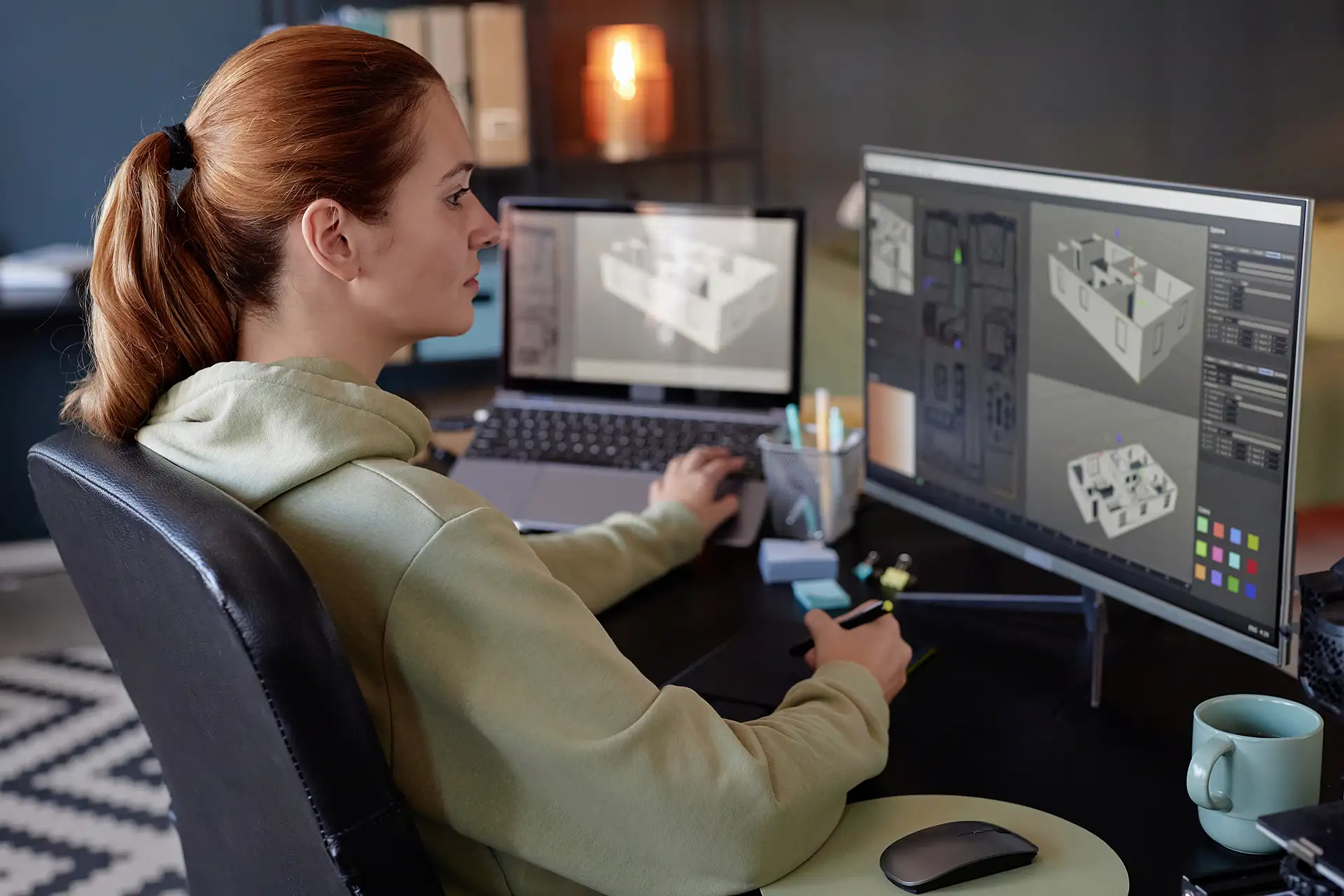
The journey from file to physical object follows the same path every time, regardless of what you are printing or which printer you own.
Download the file. STL files come from designers who modeled the object in 3D software. You can download them from free repositories, paid marketplaces, or create your own.
Open in a slicer. Slicer software reads the STL geometry and lets you position it on a virtual build plate. You set layer height, infill, speed, temperature, and supports. The slicer then converts everything into G-code.
Transfer to the printer. The G-code file goes to your printer via SD card, USB, or Wi-Fi. The printer reads it line by line and builds the object layer by layer from the bottom up.
Remove and finish. The printed object comes off the build plate. Depending on the design, you might remove supports, sand rough areas, or paint the finished piece. Many well-designed files need none of that.
Understanding the limitations is as important as understanding the format itself.
An STL file has no concept of color. A model of a red fire truck and a model of a white vase look identical inside the file. Color comes from your filament choice, not the file. Similarly, the file says nothing about what material to use.
STL files contain no unit information. A model exported at millimeter scale from one software might import at centimeter scale in another, appearing ten times larger than intended. You always check and set scale in the slicer before printing.
Layer height, infill, temperature, speed, supports — none of that lives in an STL file. Every print setting is applied in the slicer. This is why documented print settings from the designer are so valuable. The file itself tells you nothing about how to print it.
A model with ten parts comes as ten separate STL files. The file format has no way to encode how parts fit together, which order to assemble them, or what hardware they need. Assembly instructions must come from the designer separately.
An STL file is a frozen snapshot of a shape. You cannot step back into the design decisions that created it. Editing an STL is possible but cumbersome — you are reshaping a mesh of triangles, not working with the original parametric design.
A valid STL file is not the same as a printable one. The format itself cannot tell you whether a model will print cleanly, whether tolerances are correct, or whether the designer ever physically tested it. That judgment has to come from you.
Each topic below has a full dedicated guide. Pick the question you have right now.
The full history of the format — where it came from in 1987, who created it, what STL originally meant, and why the name changed.
Triangles, meshes, vertices, and normals. How a complex 3D shape becomes thousands of flat triangles and why that matters for print quality.
The full breakdown of what the format cannot do, why those limitations exist, and when they actually cause problems for makers.
How to tell a tested, printable file from one that was never actually printed. The signals that separate quality designers from render-only uploads.
The 7 specific signals that separate a well-designed, physically tested file from one that will waste your time and filament. A practical checklist before you download.
What you can and cannot do with files you download. Personal use, commercial printing, remixing, and the license types you will actually encounter.
Where to start if you want to design your own models. Software options from beginner browser tools to professional CAD.
What makes an STL file broken, the errors that cause print failures, and the free tools that fix them before you waste a print.
The newer format that fixes most of what STL cannot do. What 3MF adds, when it matters, and whether you should use it instead of STL.
OBJ, AMF, STEP, 3MF, and G-code. What each format does, what it was designed for, and which printers and slicers support them.
STL originally stood for Stereolithography, the 3D printing process it was designed for when created by 3D Systems in 1987. The format has since been reinterpreted as Standard Tessellation Language and Standard Triangle Language, both of which describe what the format actually does. All three interpretations refer to the same file format. See the full history: What Does STL Stand For?
Yes. STL is the universal standard for FDM, resin, and SLS printing. Every major slicer — Bambu Studio, PrusaSlicer, Cura, ChiTuBox — opens STL files regardless of which printer you own. The file itself is printer-agnostic. Your slicer handles the translation to your specific machine.
STL stores geometry only — the shape of the object as a triangle mesh. 3MF stores geometry plus color assignments, material properties, multi-part assembly data, print settings, and scale information. 3MF is the more capable modern format. For most everyday printing, STL works fine. For multi-color printing or sharing files with settings pre-configured, 3MF is the better choice. Full comparison: 3MF vs STL.
Many are, many are not. Free STL repositories like Printables, Thingiverse, and MakerWorld host hundreds of thousands of free designs. Paid marketplaces sell designer files, typically ranging from a few dollars to twenty or more for complex models. Price and quality don’t have a guaranteed relationship — the signals that predict print quality are documentation, real print photos, community makes, and dimensional testing. See: What to Look for in a Quality STL File.
Yes, but it requires mesh editing software rather than traditional CAD. Programs like Meshmixer, Blender, and Microsoft 3D Builder can open and modify STL files. You can resize, cut, combine, and reshape. What you cannot do is step back into the original design history — an STL is a frozen snapshot, not a parametric model.
Look for: actual photographs of printed results rather than renders only, documented print settings from the designer, a file that has been updated based on buyer feedback, and reviews from people who printed it rather than just downloaded it. A file with renders only and no print documentation is a risk. See the full checklist: What to Look for in a Quality STL File.
3D printing (FDM) works by melting plastic filament and building objects layer by layer from a digital file. A slicer app converts your STL file into instructions the printer follows.
Start here: OreKo 3D Printing Beginner Guide ↗
Popular reads: What Is FDM? • How Much Does It Cost? • What Can You Make?
OreKo provides STL files for all models, and 3MF files for multi-color models like the Deck Maker Set. 3MF files have color assignments pre-set for Bambu Studio. Full explanation: What Is a 3MF File? ↗
All OreKo models are designed for FDM printers. Resin printers can technically print them but are not tested for resin. FDM vs Resin guide ↗
OreKo uses Bambu Studio for all testing — free, handles STL and 3MF, works great with Bambu printers. For non-Bambu printers, Orca Slicer (free, based on Bambu Studio) and PrusaSlicer are solid choices.
Most FDM printers handle overhangs up to 45° without supports. All OreKo models stay within the self-supporting range — no supports needed.
Full guide: Overhang Angle Explained ↗
Blender is the most capable free 3D modeling tool — great for organic shapes, characters, and creative designs.
OreKo's full beginner guide: Blender for 3D Printing ↗
After printing, most OreKo models need minimal cleanup. For display pieces: light sand with 220 grit, primer spray before painting, acrylic paint works well on PLA.
Full guide: Post Processing Guide ↗
Best free STL sites in 2026:
Honest breakdown: Where to Find Free STL Files ↗
G-code is the instruction file your printer executes — produced by the slicer from your STL. Every move, temperature, and speed is a G-code command. The slicer handles it automatically.
Full guide: What Is G-Code? ↗
Two main paths for 3D modeling:
Beginner? Start with TinkerCAD — free, browser-based, no install. 3D Modeling Guide ↗
Every STL and 3MF file in the OreKo catalog was designed in 3D modeling software, physically printed on FDM hardware, tested for print quality and dimensional accuracy, and only then made available for download. The files on this site are not renders-only listings. They are tested prints.
That is mentioned here for context, not as a sales pitch. The rest of this section is genuinely just about STL files.