
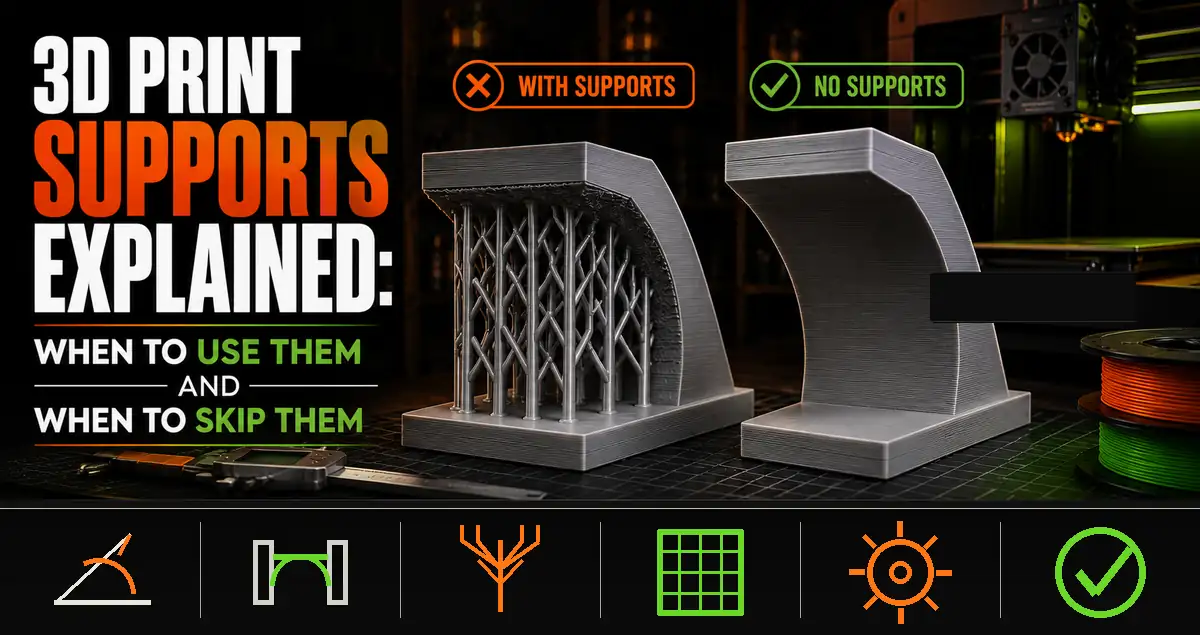
Supports are one of the most misunderstood settings in FDM printing. New makers either turn them on for everything out of caution and end up with rough, hard-to-clean surfaces, or download a file that says “no supports needed” and immediately add them anyway out of habit. Neither approach is right. Understanding when supports are genuinely required, when they hurt more than they help, and how to configure them when you do need them gives you dramatically better results with less post-processing work.
What Are 3D Print Supports?
Supports are temporary scaffolding structures your slicer generates underneath overhanging sections of a model. FDM printers build objects layer by layer from the bottom up. Each new layer bonds to the one below it. When a layer extends out past the layer beneath with nothing to bond to, the plastic either bridges the gap (if it’s short enough) or droops, sags, and eventually collapses.
Supports give those overhanging layers something to rest on during printing. Once the print finishes, you remove the support material by breaking, cutting, or peeling it away. What’s left is the finished object.
The trade-offs are real:
- Support material adds 10-40% to total print time depending on geometry
- Extra filament is consumed and wasted in the support structure
- Contact points between support and model always leave some surface marking
- Removal takes time and carries a small risk of damaging surface detail
- The underside of a supported surface never looks as clean as an unsupported surface
This is why well-designed models are engineered to print without supports wherever possible, and why a “no supports needed” label on a file is a meaningful quality signal, not just a convenience note.
The 45-Degree Rule: When Do You Actually Need Supports?
The 45-degree rule is the foundational concept for understanding overhangs. FDM plastic cools as it’s deposited. As long as the new layer overlaps enough with the layer below, it has something to bond to and cool against. The steeper the overhang, the less overlap there is until at some point the plastic is essentially printing into free air.
Most FDM printers handle overhangs up to 45 degrees from vertical without supports. Bambu Lab printers with aggressive part cooling typically push that to 50-55 degrees. Well-tuned open-frame machines with good cooling hit 50 degrees comfortably.
| Overhang Angle | What Happens | Supports Needed? |
|---|---|---|
| 0-45° from vertical | Clean print. Layer bonds naturally to the one below. | No |
| 45-60° from vertical | Marginal. Quality depends on printer cooling and speed. | Maybe — test first |
| 60-90° from vertical | Drooping, stringing, surface collapse on most printers. | Yes |
| 90° (horizontal) | Bridges short spans only. Long spans sag without support. | Yes for spans over 50mm |
Angle is measured from vertical, not horizontal. A 45-degree wall leans outward at 45 degrees from straight up. A horizontal surface (ceiling over a cavity) is 90 degrees from vertical and nearly always needs support unless it’s a short bridge.
Bridging: The Horizontal Special Case
Bridging is when the printer spans a horizontal gap with no support below. Unlike an overhang (which extends at an angle from a surface), a bridge is completely horizontal and connects two supported walls.
FDM printers handle short bridges reasonably well. The plastic cools quickly enough across a short span to produce a clean, flat result. The limit varies by printer and filament but typically runs:
- Under 30mm: Prints reliably on most well-tuned printers
- 30-60mm: Works on good machines with strong part cooling. Slight sag may appear at the midpoint.
- Over 60mm: Expect visible sag. Supports recommended for anything where a clean flat surface matters.
Bridging performance improves with slower bridge speed (dedicated setting in most slicers), maximum fan cooling during bridging, and lower print temperature to help the plastic solidify faster mid-air. Bambu Studio’s bridge settings can be tuned independently of your main print speed and usually default to something reasonable, but the dedicated bridge speed setting is worth checking if you’re getting sag on spans in the 40-60mm range.
Support Types Compared
| Support Type | How It Works | Best For | Avoid When |
|---|---|---|---|
| Normal (grid) | Dense vertical lattice grows up from the bed to underside of overhang | Large flat overhangs, architectural geometry | Organic shapes, tight spaces, anywhere removal difficulty matters |
| Tree supports | Branch-like structures grow from bed contact points and extend to touch only the overhang surfaces that need them | Organic models, figurines, complex props, anywhere minimal surface marking matters | Very dense geometry where tree branches can’t navigate |
| Snug supports | Follows the model contour more closely than normal grid | Curved overhang undersides, moderate complexity | Not always available in all slicers |
| Support painting (manual) | You paint exactly where support should and should not appear | Models where auto-generated supports go in the wrong places | Simple geometries where auto placement is fine |
The practical default for most makers: Tree supports. They produce less surface damage, are easier to remove, and work well across the range of organic and semi-organic models most hobbyists print. Switch to normal grid supports only when the geometry is very flat or when tree branches are collapsing before completing.
The Key Support Settings in Bambu Studio
If you need supports, these are the settings that make the real difference in Bambu Studio. Access them under Process > Support.
Support type: Normal or tree. Default to tree for most prints.
Support on build plate only: When enabled, supports only generate from the build plate up. Overhanging faces on the sides of models that don’t need ground-level support are left alone. Useful for complex models where you only need support under specific features.
Support/model z distance: The vertical gap between the top of the support and the underside of your model. The default is typically 0.2mm. Increasing to 0.25mm or 0.3mm makes removal significantly easier with only a slight reduction in supported surface quality.
Top interface layers: The dense layers at the very top of the support that contact your model. 2-3 interface layers at higher density produce a much cleaner supported surface than having no interface layers. The interface layers are the part of the support you’re most likely to see marks from.
Support density: 15% is the default for most use cases. Lower density (10%) is easier to remove but provides less support. 20-25% for large heavy overhangs that need firm support during printing.
How to Remove Supports Without Damaging Your Print
Support removal is where a lot of otherwise good prints get damaged. The technique matters.
Let it cool fully. Warm PLA is slightly flexible. Cool PLA snaps cleanly. Give the print 15-20 minutes at room temperature before attempting removal.
Start at the base, not the top. Use flush cutters to clip support columns as close to the bed as possible. This weakens the structure and lets you break the larger support pieces away cleanly rather than trying to peel them from the model surface.
Work toward the model surface last. The support-to-model interface is where damage happens. Once the bulk of the support is off, use fine flush cutters to remove remaining nubs. A dental pick or craft knife removes the last contact marks.
On OreKo files specifically: All OreKo models are designed as support-free. If your slicer is generating supports automatically, confirm the model is in its provided orientation and that support generation is set to the correct setting (“Support on build plate only” is sometimes useful, but “No supports” is the correct setting for OreKo files). Adding supports to a support-free design wastes material and leaves marks on surfaces that were designed to be clean.
How Designers Eliminate Supports
Every support-free model required deliberate design decisions during creation. Understanding how it’s done helps you evaluate downloaded files and improves your own designs if you get into 3D modeling.
Chamfers instead of overhangs. A 45-degree chamfer (angled surface) under a horizontal ledge prints without support. The chamfer is below 45 degrees from vertical, so it prints cleanly. This single change eliminates the most common support requirement in product-style designs.
Split into printable pieces. A complex object that would require supports as one piece often prints support-free when split into two or three simpler pieces oriented correctly. The OreKo deck box is a good example: the box body and the logo cap are separate files, each oriented for clean support-free printing, then assembled. As one piece in the wrong orientation they’d require supports. As two pieces each in the right orientation, they need none.
Strategic print orientation. The orientation the designer provides in the STL file matters enormously. Rotating a model 90 degrees can eliminate all overhangs. OreKo files are provided in the orientation that was validated during testing. Changing the print orientation changes which surfaces are overhangs and often introduces support requirements that weren’t there in the original orientation.
Self-supporting geometry. Arches, domes, and tapered forms are naturally self-supporting if the angles are kept under the printer’s limit. A gradual dome needs no support. A flat ceiling over a cavity does.
Hinge pin holes. On the OreKo miniature windows, the shutter hinge holes are circular and oriented to print as circles in the correct orientation. Circles print clean when oriented correctly because each layer only extends slightly past the previous one. Reoriented incorrectly, the same circle becomes an oval-shaped overhang requiring support.
Material Considerations for Supports
Different materials behave differently with support structures.
PLA produces the cleanest support separation. The material is relatively stiff when cool, snaps cleanly at support contact points, and the interface layers come away without too much effort on most well-configured support settings.
PETG is notoriously difficult with normal supports. PETG has higher layer adhesion than PLA, which means it bonds more aggressively to support contact surfaces. The result is support removal that tears the model surface or leaves extensive marking. With PETG, maximize Z distance (0.3-0.35mm), use tree supports, and accept that supported surfaces will need cleanup work. Better still, optimize PETG models to minimize support use more than you would with PLA.
TPU (flexible) is almost impossible to support cleanly with standard supports. The flexible material bonds to support contact points strongly and the flexibility makes removal difficult without distorting the print. Design TPU parts to be genuinely support-free wherever possible.
Soluble supports are the complete solution to support marking problems. Using a dual-nozzle printer with water-soluble PVA or BVOH support material, supports dissolve in water and leave a perfectly clean supported surface. This is relevant only for dual-extrusion printers like the Bambu Lab H2D.
Frequently Asked Questions: 3D Print Supports
What angle needs supports in 3D printing?
Overhangs steeper than 45-50 degrees from vertical typically need supports on consumer FDM printers. Horizontal bridges longer than 50-60mm also need support unless they’re spanning between two solid walls. Test your specific printer with a standard overhang test model to find its limit, which varies by machine and cooling setup.
Is it always bad to add supports?
Not always — some geometries genuinely need them for a clean result. The issue is adding supports to models designed to be support-free. When a file says “no supports needed” and is provided in the correct orientation, adding supports creates cleanup work and surface marks on surfaces that would have been clean without them.
Are tree supports better than normal supports?
For most hobby prints, yes. Tree supports touch the model at fewer points, leave less surface marking, and are generally easier to remove. Normal grid supports produce a cleaner result under large flat horizontal overhangs where tree branches can’t provide even coverage. Bambu Studio’s implementation of tree supports is one of the best available.
Why does my model say no supports needed?
The designer engineered the geometry and orientation to stay under the printer’s overhang limit. They used chamfers, split the model into pieces, or chose an orientation where all overhangs are self-supporting. It’s a significant indicator of a well-designed file. All OreKo models work this way.
How do I know if my print needs supports before printing?
Slice the model in Bambu Studio or PrusaSlicer with support generation on and look at the preview. Areas flagged for support will show in a different color. If no support areas appear, the model prints without them at the current orientation. Also check the layer-by-layer preview — any layer that has significantly less contact with the previous layer is a potential overhang problem.
Can I print PETG without supports?
Yes, if the model is designed for it. PETG handles overhangs similarly to PLA. The main challenge with PETG and supports is not whether it can bridge the overhang, but how aggressively PETG bonds to support material if you do use supports. Maximize Z distance settings if you need supports with PETG.
Do Bambu Lab printers need fewer supports?
Generally yes. Bambu Lab’s aggressive part cooling and precise motion control lets them handle steeper overhangs than older, slower printers. A 50-degree overhang that would need support on an Ender 3 often prints clean on a Bambu Lab A1. This is one of the practical benefits of the higher-end hardware beyond just speed.
What settings reduce support marks on the model surface?
Increase Z distance to 0.25-0.3mm, add 2-3 interface layers for a cleaner interface surface, use tree supports rather than grid, and use lower support density (10-15%). On PLA, these settings together produce support-removal results that need minimal sanding to clean up.