
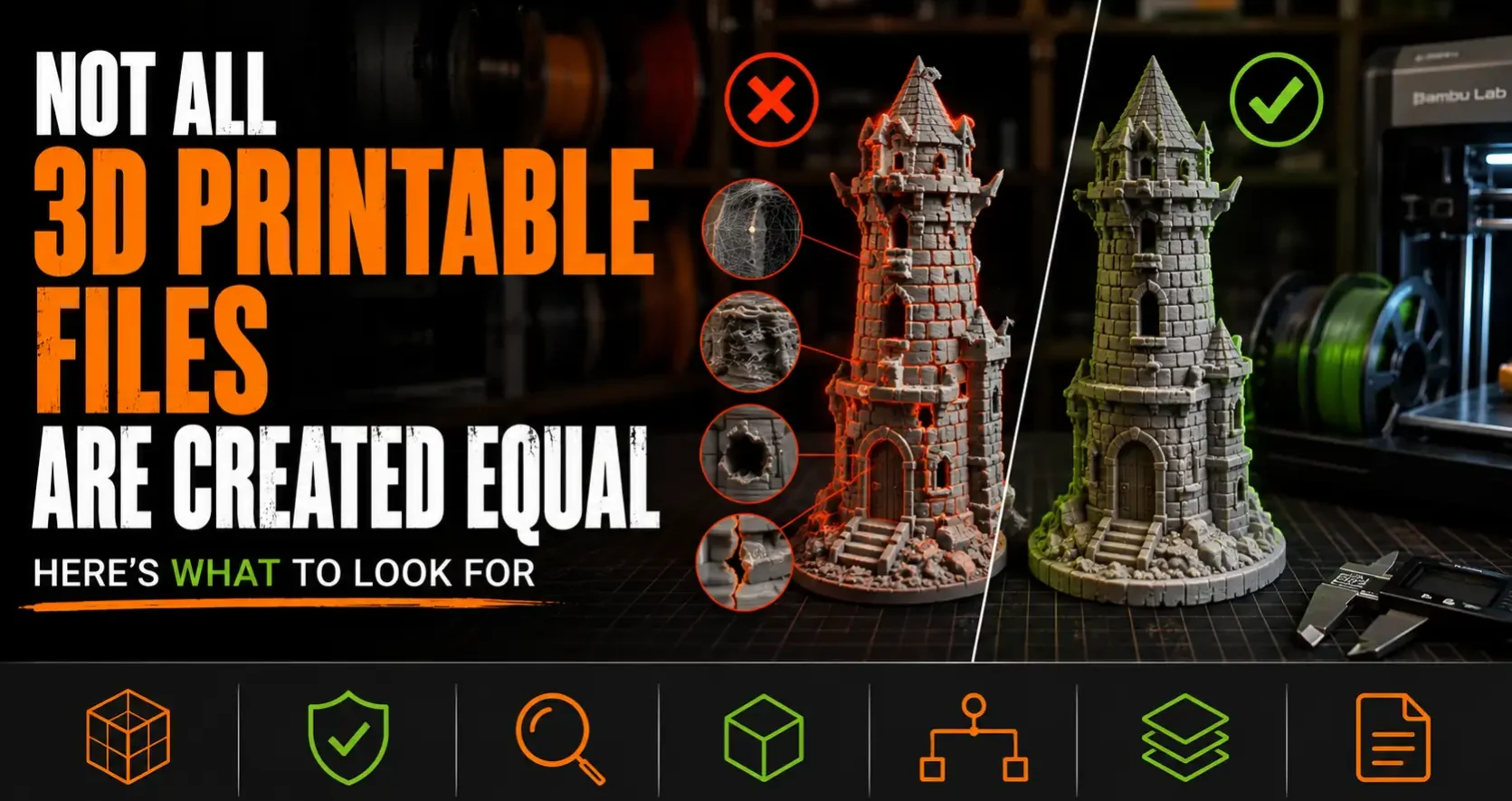
The Problem Nobody Talks About in the STL File Market
The 3D printing file market has a quality problem that most new makers find out about the hard way. You download a highly-rated file, spend two hours printing it, and watch it fail halfway through — or finish printing and realize the dimensions are wrong, the tolerances are off, or the design simply never worked as described because the designer modeled it but never actually printed it themselves.
This is more common than the community acknowledges. A significant portion of STL files available for download on free and paid platforms were created by designers who are skilled in 3D modeling software but have limited actual printing experience. The model looks perfect in a render. It does not work on an FDM printer.
Knowing what to look for before you spend money — or spend three hours of print time on a free file — makes the difference between a successful build and a frustrating waste of filament.

The Render vs. the Print
The single most important thing to check before downloading any STL file is whether the product page shows actual photographs of printed results or only 3D software renders.
A render is what the model looks like inside the design software. It can be made to look photorealistic with the right lighting and materials applied. It shows nothing about how the model prints, whether supports are needed, whether tolerances are correct, or whether the design has any of the dozens of issues that only appear when plastic meets a build plate.
A photo of a printed result shows the actual output. Layer lines, surface quality, fit between assembled parts, and real-world scale are all visible. A designer who has printed their own model is a designer whose file you can trust to actually print.
Rule of thumb: If every image on the product page looks like a polished render and there is no photo of a physical printed object, treat the file as untested until proven otherwise.
Red Flags vs. Green Flags: What to Look for on Any STL Listing
| What You See | Red Flag | Green Flag |
| Images | Only renders, no printed photos | Real photos of printed results, multiple angles |
| Print settings | No settings listed, vague description | Specific nozzle, layer height, infill, supports documented |
| Designer comments | No replies to buyer questions | Designer actively responds, updates files based on feedback |
| File updates | Original upload never touched again | Updated versions with changelogs — fixes real-world print issues |
| Buyer feedback | No reviews or vague positive comments only | Reviews that mention specific print results, settings used, or assembly experience |
| Printer compatibility | No mention of what printer was used | Specific printers listed, tested on multiple machines |
| Support requirements | No mention, or vague “may need supports” | Clear statement: supports needed or explicitly no supports needed |
| Assembly instructions | Nothing beyond the model file | Step-by-step assembly guide, hardware list, fit tolerances documented |
Why Print Settings Matter More Than You Think
A designer who has actually printed their model knows the specific settings that make it work. They know which layer height produces the best logo cap detail. They know that the hinge holes need 0.12mm to fit the pin correctly, not 0.20mm. They know that the box body needs six wall lines to hold its shape under card weight, not two.
That knowledge comes from printing the model, seeing what breaks, adjusting the settings, and printing it again. When a designer documents specific print settings — nozzle diameter, layer height, infill percentage, wall count, first layer height — those numbers are not arbitrary. They represent someone sitting at a printer, testing combinations, and finding what actually works.
When a listing has no print settings, or just says “print at 0.2mm,” that is often a signal that the designer modeled the object and uploaded it without running it through a printer. The file may work fine. Or it may have tolerance issues, overhangs that collapse without undocumented supports, or wall thicknesses that produce a fragile result at standard settings.
The Update History Tells the Truth
One of the most reliable signals of a quality STL file is a meaningful update history. Every real-world print reveals something that can be improved. Tolerances adjusted for better fit. A wall thickened to stop a snap-fit from breaking. A new orientation file added for easier printing. A version sized for a different scale.
When a designer publishes a model and it has been updated multiple times in response to buyer feedback, that is evidence of real-world use. Someone printed it, found an issue, and cared enough to fix it and push an update to buyers.
On Cults3D, you can see version history and designer comments on most listings. Look for models where the designer has replied to questions, acknowledged issues, and shipped fixes. That activity signals a designer who is engaged with how their files perform on real printers.
A listing with zero updates since the original upload, no replies to buyer questions, and only render images is a file that may never have been tested. That does not mean it will not print — but it means you are taking a risk the designer has not taken themselves.
The Free File Trap
Free does not mean risk-free when it comes to print time. A free file that fails halfway through a three-hour print has cost you more in filament and time than a $3 file that prints perfectly the first time.
This is not an argument against free files — there are excellent free STL files from experienced designers who share their work openly. The point is that “free” is not a quality signal in either direction. Apply the same evaluation criteria to free files that you would apply to paid ones:
- Are there photos of actual prints?
- Are print settings documented?
- Has the designer responded to comments?
- Has the file been updated based on feedback?
- Are there real buyer reviews mentioning successful prints?
A free file that scores well on all five is a great download. A paid file that scores poorly on all five is a risk regardless of the price.
What to Look for in Buyer Reviews
Not all reviews are equally useful. A five-star review that says “Great model!” tells you nothing about print performance. A review that says “Printed on a Bambu A1 at 0.12mm, fits together perfectly, only needed minimal cleanup on the hinge holes” tells you everything.
Reviews that actually help:
- Mention the printer and settings used
- Describe assembly experience, including any issues
- Note fit and dimensional accuracy
- Mention what they would do differently
- Include photos of their printed result
Reviews to take with a grain of salt:
- Generic praise with no print details
- Reviews from accounts with no other activity
- Reviews that only mention how the model looks in the preview
- Comments from people who downloaded but have not printed yet
The OreKo Standard: Designed, Printed, Tested
Every OreKo model on Cults3D has been designed, physically printed, and tested before publishing. The photos on every listing are photos of actual printed results — not renders. The print settings documented on every product page are the exact settings used during development and testing.
When you see “0.08mm layer height, 100% infill, 9 top layers, 7 bottom layers” on an OreKo logo cap, that is not a generic recommendation copied from a slicer profile. That is the setting that was found to produce the sharpest spike detail on the Lollipop Chainsaw chain, the cleanest Jolly Roger skull geometry on the One Piece deck box, and the most accurate mana symbol on the Eldrazi Incursion caps.
The OreKo catalog has also been updated over time based on real-world use. The Lollipop Chainsaw chain links were updated to add the Perfect Fit and 487 flat versions after the community asked for a rotating chain option. The Miniature Window set added a 1:12 version, a thicker wall version, and a wider planter version based on buyer requests. Those updates exist because the models are in active use and the designer is paying attention to how they perform.
The Checklist Applied to OreKo Models
| Quality Signal | OreKo Status |
| Photos of printed results | ✓ Every listing |
| Specific print settings documented | ✓ Every listing |
| Designer responds to questions | ✓ Active on Cults3D |
| Files updated based on feedback | ✓ Multiple models updated |
| Printer compatibility noted | ✓ Bambu X1C, A1, Ender 3 tested |
| Support requirements clear | ✓ No supports confirmed on all models |
| Assembly instructions provided | ✓ Step-by-step on all assembly models |