
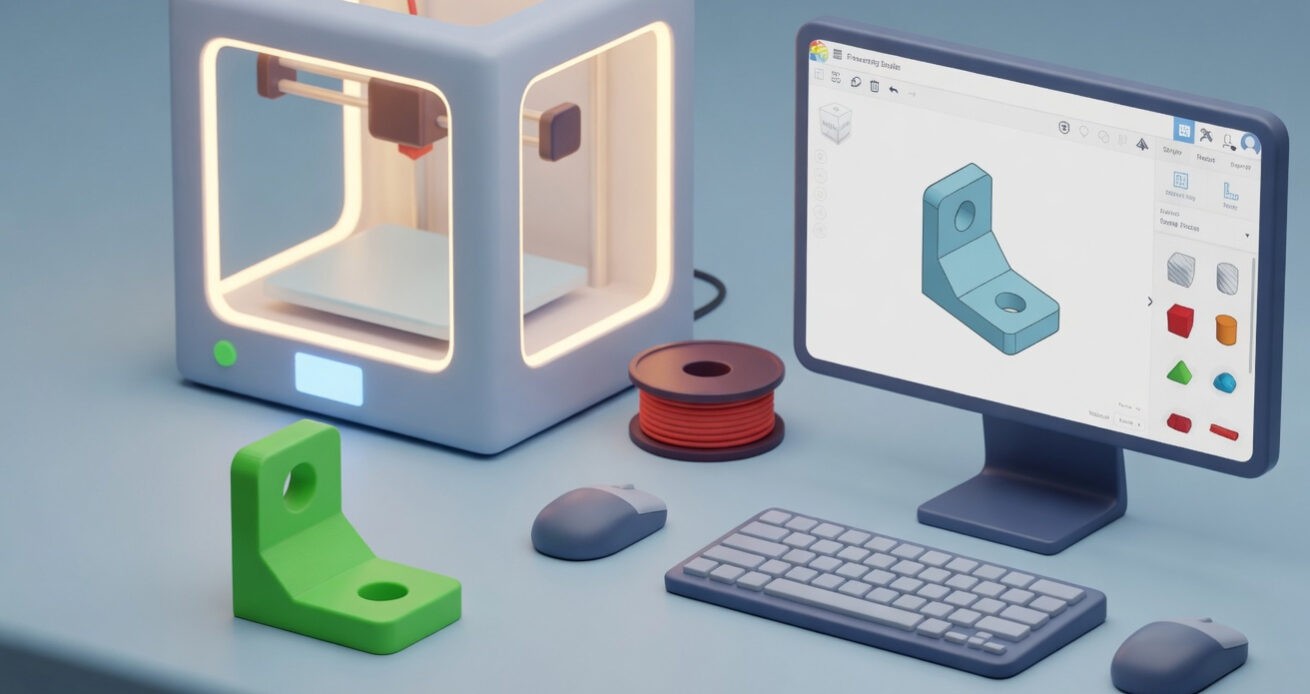
The 3D Modeling Tool That Anyone Can Learn in a Weekend
If you have ever wanted to design your own 3D printable objects but felt intimidated by complex software, Tinkercad is the tool that removes every barrier. It runs in a web browser, requires no installation, costs nothing, and teaches you the core concepts of 3D design through the most intuitive interface in the field.
Tinkercad was built with one goal: make 3D modeling accessible to people with no prior experience. It has become the go-to tool in schools, libraries, and makerspaces worldwide, and for good reason. Within an hour of opening it for the first time, most beginners have designed and exported their first printable STL file.
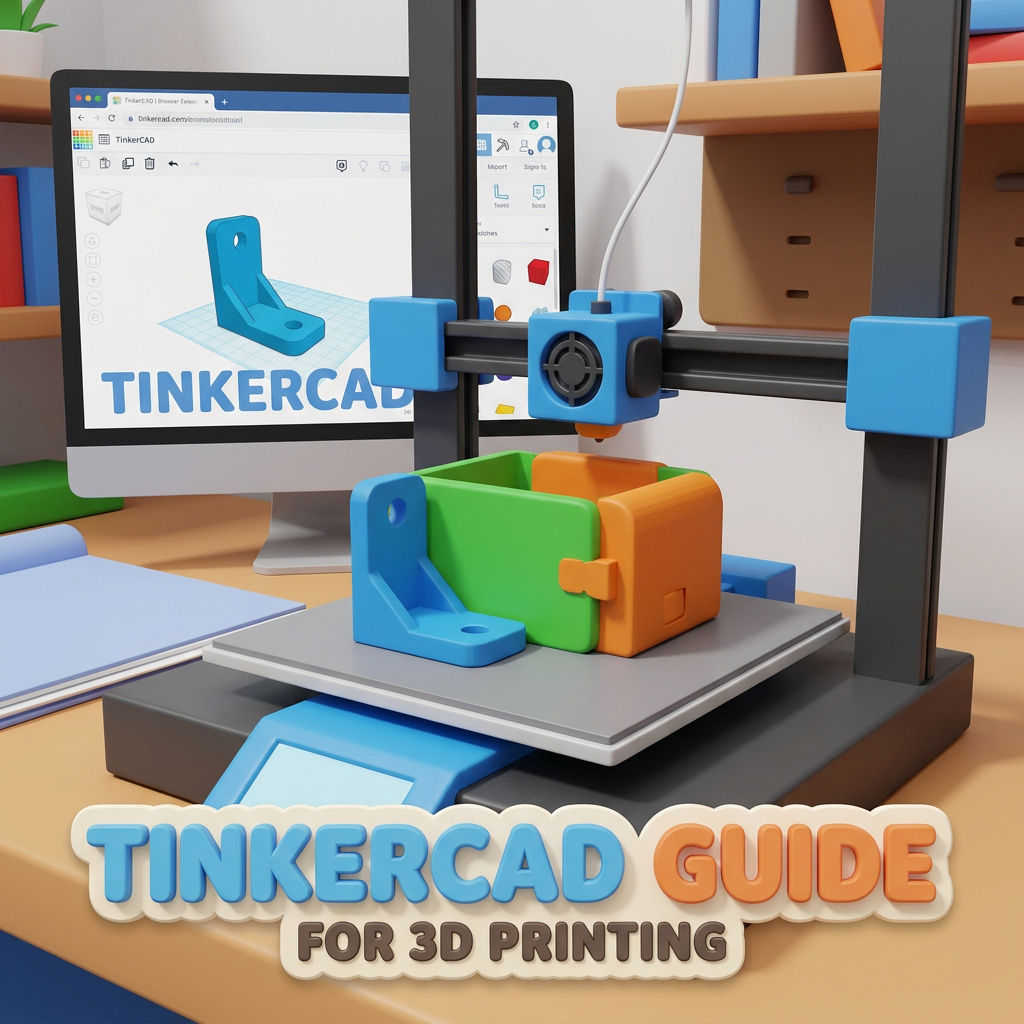
What Tinkercad Is
Tinkercad is a free, browser-based 3D modeling application made by Autodesk. It uses a method called Constructive Solid Geometry (CSG): you work by adding, combining, and subtracting basic shapes. Drop a box on the workplane, drop a cylinder through it to create a hole, group them together, and you have a tube. That is the entire conceptual model. Everything in Tinkercad is some combination of those operations.
Because it runs in a browser, Tinkercad works on any computer, tablet, or Chromebook with an internet connection. No GPU requirements, no installation, no version updates to manage. You create a free Autodesk account and start designing immediately.
Models are saved automatically to your Tinkercad account and can be exported at any time as STL or 3MF files ready for your slicer.
The Tinkercad Interface: What You’re Looking At
Four elements make up the entire Tinkercad workspace.
The Workplane
The flat grid surface where you build your model. Objects placed on the workplane sit at zero height, which is where your print will start. You can add helper workplanes at different heights and angles for more complex builds.
The Shape Library
The right side panel contains pre-built shapes: boxes, cylinders, spheres, cones, wedges, text, and more. Drag any shape onto the workplane to place it. Tinkercad also has community shape libraries with hundreds of additional pre-made components.
The Inspector
Click any shape to open its dimension controls. Type exact values for width, depth, and height in millimeters. This is where Tinkercad’s precision comes from. You are not eyeballing dimensions, you are entering real measurements.
Hole Mode
The most important concept in Tinkercad. Any shape can be toggled from a solid to a hole. A hole is invisible by itself but removes material from any solid shape it overlaps. Solid box plus hole cylinder, grouped together, creates a tube. This is how Tinkercad creates all complex geometry.
Your First Tinkercad Project: A Simple Deck Box Lid
The best way to learn Tinkercad is to make something immediately. Here is how you would design a simple snap-fit deck box lid for a standard single-sleeved TCG deck.
Step 1: Set your dimensions. A single-sleeved TCG card is approximately 65 x 90mm. Your lid needs to be slightly larger to fit over the box body: 67 x 92mm is a good starting point with 2mm clearance.
Step 2: Create the base plate. Drag a Box shape onto the workplane. Set its dimensions to 67mm wide, 92mm deep, and 3mm tall. This is your lid face.
Step 3: Add the lip. Drag another Box shape. Set it to 63mm wide, 88mm deep, and 8mm tall. Toggle it to hole mode. Align it centered on top of your base plate. Group them. You now have a lid with a recessed channel that fits over the box walls.
Step 4: Export. Click Export in the top right, select STL, and download. Load it in Bambu Studio or PrusaSlicer and slice.
You just designed a printable part in Tinkercad. The whole process takes about 15 minutes once you know the interface.
What Tinkercad Does Well
Zero learning curve to first design. The interface is drag-and-drop. The tutorials are built directly into the app. Most people produce their first printable STL within their first hour.
Exact dimensions in millimeters. Unlike sculpting tools, every shape in Tinkercad has explicit numeric dimensions. This is essential for 3D printing where a deck box that is 1mm too narrow is useless.
Works on any device. Browser-based means it runs on the cheapest Chromebook, on an iPad, on a school computer. No minimum spec, no install.
Community models. Tinkercad’s community gallery contains millions of shared designs you can import directly into your project, modify, and incorporate into your own models.
Free forever. Autodesk has kept Tinkercad free since acquiring it in 2013. There is no premium tier that unlocks essential features.
Where Tinkercad Has Limits
Complex organic shapes are difficult. Tinkercad works with geometric primitives. Sculpting a face, designing a curved anatomical form, or creating flowing organic geometry is extremely limited. If you want to design detailed figures or miniatures, Blender is the right tool.
No parametric history. If you decide to change a dimension after several steps, you often need to manually adjust multiple shapes. Professional CAD tools have a parametric history that lets you change one value and have everything update automatically. Tinkercad does not.
Performance on complex models. Very complex designs with hundreds of shapes can run slowly in the browser. For intricate models, desktop CAD software handles the processing more smoothly.
File management. Tinkercad projects are stored in your Autodesk account. There is no local file management. If Autodesk’s servers are down, you cannot access your projects.
Tinkercad Features You Might Not Know About
Align tool. Select multiple shapes and align them by edge, center, or face with one click. Essential for precise positioning without manually calculating coordinates.
Ruler tool. Click the ruler icon to measure distances and angles in your design. Critical for validating that your dimensions match your intent before printing.
Codeblocks. An optional visual programming mode where you can generate geometry using code blocks instead of drag-and-drop. Useful for parametric designs like coin stacks or pattern repeats.
STL import. You can import existing STL files directly into Tinkercad and use them as components in your design or make modifications. The imported geometry becomes a Tinkercad object.
Designing OreKo-Style Models in Tinkercad
For anyone inspired by the OreKo catalog and wanting to design their own custom deck boxes, mold frames, or miniature furniture, Tinkercad is the practical starting point. The core geometry of a deck box is entirely within Tinkercad’s capabilities: a rectangular box, a lid with a snap-fit channel, optional slots for sleeves and a commander card front window.
To design a custom logo cap, Tinkercad’s text tool generates clean 3D text in any font that exports as a printable STL. For simple logo shapes, the shape library has stars, hearts, arrows, and polygons that can be combined into recognizable symbols.
The limitation is detail. Tinkercad cannot produce the level of fine raised detail that OreKo’s Jolly Roger or Eldrazi artwork uses. For that level of detail you need Blender or a professional CAD tool. But for the box body, functional snaps, and basic custom text, Tinkercad gets you there.