
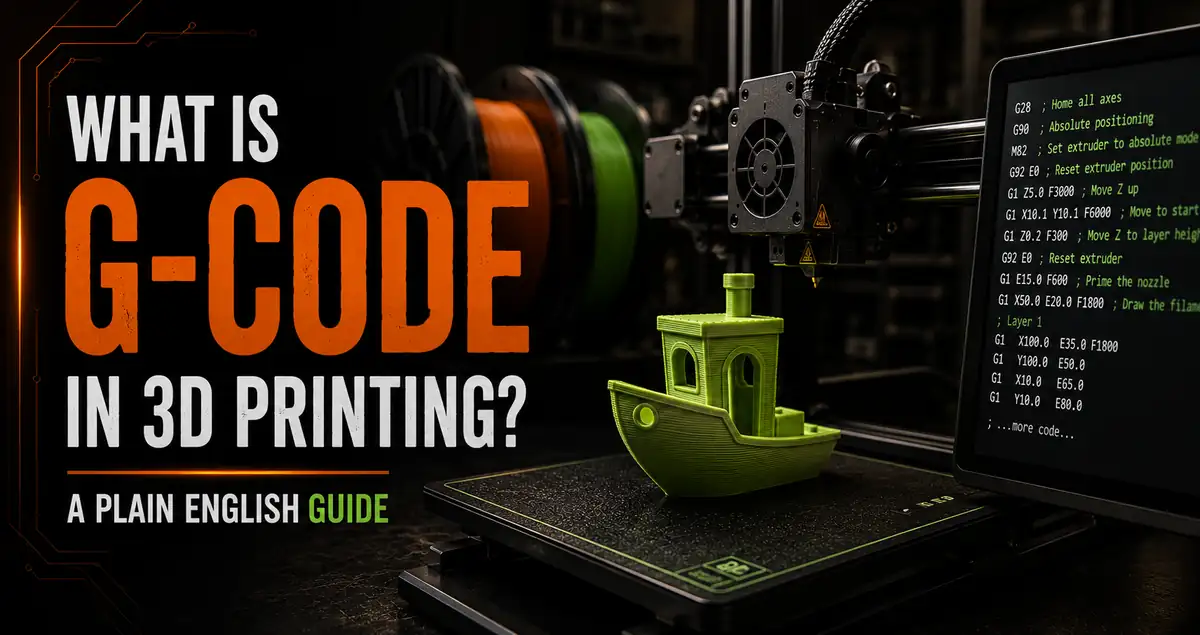
Every 3D print you’ve ever made was driven by G-code. You’ve never had to write a single line of it, and you probably never will. But understanding what G-code is, where it comes from, and what it’s doing while your printer runs takes the mystery out of the whole process and makes troubleshooting substantially more logical. When a print fails at a specific point, when you want to add a mid-print color change, or when your settings don’t seem to be doing what the slicer says — G-code is where the answer lives.
What Is G-Code?
G-code is the instruction language that 3D printers execute to produce a print. It’s a plain text file containing individual commands, one per line, each telling the printer what to do next: move the head to these exact coordinates, heat the nozzle to this temperature, extrude this much filament, turn the fan on at this speed.
The printer has no understanding of the 3D model. It doesn’t know it’s printing a deck box or a miniature window. It reads one line of G-code, executes it, reads the next line, and executes that. The intelligence is in the slicer that generated the G-code, not in the printer executing it.
A typical 2-hour PLA print generates 200,000-400,000 lines of G-code. A complex multi-color Bambu Lab print can exceed a million lines. Your slicer generates all of it in seconds.
How G-Code Gets Generated: What the Slicer Actually Does
You configure settings in Bambu Studio, PrusaSlicer, or Orca Slicer. You click Slice. The slicer does this:
- Reads the model geometry — STL or 3MF as a mesh of triangles
- Cuts the mesh into horizontal layers at your chosen layer height
- Calculates toolpaths for each layer — outer walls, infill, top/bottom surfaces, support structures
- Converts toolpaths to movement commands with the speed, temperature, fan, and extrusion values from your profile
- Applies printer-specific optimizations — pressure advance values, acceleration profiles, Bambu-specific AMS color change sequences
- Outputs a G-code or 3MF file ready to send to the printer
Every setting you configure becomes specific G-code values. This connection is more direct than most people realize.
Common G-Code Commands Explained
| Command | What It Does | Plain English |
|---|---|---|
G28
| Home all axes | Move X, Y, Z to their home positions before printing starts |
G1 X100 Y50 Z0.2 E5 F3000
| Move and extrude | Move nozzle to X100, Y50, at height 0.2mm, extrude 5mm of filament, at speed F3000 (50mm/s) |
G0 X150 Y150 F9000
| Rapid travel move | Move nozzle to X150, Y150 at maximum speed without extruding |
M104 S215
| Set hotend temp (no wait) | Start heating nozzle to 215°C and continue to next command immediately |
M109 S215
| Set hotend temp (wait) | Heat to 215°C and hold until that temperature is reached before executing the next command |
M140 S60
| Set bed temp (no wait) | Start heating bed to 60°C |
M106 S200
| Fan speed | Set part cooling fan to ~78% (255 = 100%) |
M107
| Fan off | Turn part cooling fan off (used for first layers) |
M600
| Filament change | Pause print for manual filament change |
M84
| Disable steppers | Turn off stepper motors at end of print |
Note: Speed in G-code is in mm/min, not mm/s. A common point of confusion. F3000 = 3000mm/min = 50mm/s.
How Your Slicer Settings Translate to G-Code
The direct connection between slicer settings and G-code values is what makes understanding the connection useful for troubleshooting.
| Slicer Setting | What It Becomes in G-Code |
|---|---|
| Layer height: 0.2mm | Z axis increments 0.2mm per layer. E (extrusion) values calculated for a 0.2mm bead height. |
| Print speed: 150mm/s | F9000 on G1 commands (150mm/s × 60 = 9000mm/min) |
| Nozzle temp: 220°C | M109 S220 in startup, M104 S220 for mid-print adjustments |
| Infill: 15% gyroid | Thousands of G1 moves tracing the gyroid pattern at calculated spacing and extrusion values |
| Fan: off for first 3 layers | M107 (fan off) for layers 1-3, M106 S[value] at layer 4 |
| Retraction: 0.5mm at 35mm/s | G1 E-0.5 F2100 before each travel move, G1 E0.5 F2100 after |
| Brim: 5mm | G1 moves tracing concentric rectangles around the model footprint at layer 1, before the model walls begin |
G-Code vs 3MF: What Bambu Lab Printers Actually Use
Standard FDM printers read .gcode files — plain text instruction files sent to the printer via USB or SD card.
Bambu Lab printers primarily use .3mf files, which is where it gets slightly more complex. A 3MF file is a container format that stores three things: the 3D model geometry, all slicer settings, and the compiled G-code that was generated from those settings. When you slice in Bambu Studio and send to the printer, the printer extracts the G-code from within the 3MF and executes it.
When you download an OreKo 3MF file and open it in Bambu Studio, the embedded settings populate your slicer automatically. Bambu Studio then generates new, machine-specific G-code for your particular printer model when you slice. This is why the 3MF approach produces better results than just sending a generic STL and hoping the default settings work: the settings are pre-configured based on what was actually tested.
Bambu-specific G-code extensions include commands for AMS filament switching, vibration compensation calibration, bed mesh leveling integration, and the lidar-based first-layer inspection that Bambu’s higher-end printers perform. These extensions are Bambu firmware-specific and won’t work on other printers, which is one reason Bambu G-code files shouldn’t be transferred to non-Bambu machines.
When G-Code Editing Is Actually Useful
Most users never need to touch G-code directly. But there are specific scenarios where it’s the right tool.
Adding a mid-print pause for insert placement: Insert an M600 (filament change / pause) command at a specific layer. The printer pauses, you place a magnet, nut, or other insert into the printed recess, then resume. This is how embedded magnets in snap-fit accessories and heat-set nut positions work.
Adding a manual color change on a single-nozzle printer: An M600 at a specific layer height causes the printer to pause and wait for filament change. This lets you get two-color results from a printer without AMS, though the transition layer requires some purging discipline.
Adjusting temperature at specific layers: Insert M104 S[temp] commands at a layer to raise or lower temperature mid-print. Occasionally useful for materials that benefit from higher temps early and lower temps for surface layers.
Troubleshooting a layer-specific failure: If a print consistently fails at the same height, find that layer in the G-code and check for unusual moves, temperature changes, or rapid direction changes that might be causing the issue. The layer number in the G-code is usually marked with a comment like
; layer_num = 45
.
Customizing start/end scripts: The startup and shutdown G-code sequences are configurable in most slicers. Custom start scripts can add nozzle priming purge lines, specific homing sequences, or preheat sequences before the print begins.
Reading G-Code for Troubleshooting
You don’t need to understand every line, but knowing how to read the relevant parts of a G-code file makes failure analysis faster.
Open the file: G-code files are plain text. Open in any text editor — Notepad on Windows, TextEdit on Mac (plain text mode), or a code editor like VS Code for easier navigation.
Find the layer you care about: Search for
; layer_num = [N]
or
; LAYER:[N]
(format varies by slicer). Layer comments mark where each layer starts.
What to look for at a problem layer:
- Unusual Z values — unexpected height changes that might indicate a Z-hop problem
- Very high or low F values — speed spikes that might cause quality issues at that specific layer
- M104 or M109 commands — temperature changes mid-print that might be affecting extrusion
- Retraction patterns — excessive E- commands indicate high retraction volume at that layer
For most quality issues, examining 20-30 lines around the problem layer is enough to identify whether the issue is a slicer output problem or a hardware/calibration problem.
Frequently Asked Questions: G-Code in 3D Printing
Do I need to know G-code to use a 3D printer?
No. Your slicer generates all G-code automatically. Most makers print for years without looking at a G-code file. Understanding it helps with troubleshooting and advanced customization but is not required for normal printing.
What is the difference between G-code and firmware?
G-code is the per-print instruction file generated by your slicer. Firmware is the permanent software on the printer’s control board that interprets and executes those G-code commands. Firmware updates happen occasionally. G-code is generated fresh for every print.
Can I use G-code from one printer on a different printer?
Rarely, and it’s not recommended. G-code is generated for a specific printer’s motion system, bed dimensions, and firmware. Bambu Lab G-code uses Bambu-specific extensions that other printers’ firmware doesn’t understand. Always re-slice for the target printer rather than transferring G-code files.
Why does G-code look different from Bambu Studio vs PrusaSlicer?
Each slicer has its own startup/shutdown sequence conventions and uses slightly different comment formats. The core movement and temperature commands (G1, M104, M109, etc.) are standardized across most FDM firmware. Bambu-specific commands (vibration calibration, AMS control, lidar integration) are unique to Bambu firmware.
How do I add a pause to my print for a mid-print filament change?
In Bambu Studio, use the color painting tool to assign a color change at a specific layer. Bambu Studio inserts the appropriate filament change command automatically. In PrusaSlicer, right-click on the layer preview and select “Add color change.” Both insert the equivalent of M600 at that layer.
What does E mean in a G-code move command?
E is the extrusion axis. It controls how much filament the extruder motor feeds during a move.
G1 X100 Y50 E2.5
moves the nozzle to X100, Y50 while extruding 2.5mm of filament. Negative E values (like
G1 E-0.5
) are retractions — the extruder pulls filament back to reduce oozing during travel moves.
Why is speed in G-code written as F values that look too large?
G-code speed (F) is in millimeters per minute, not millimeters per second. A print speed of 150mm/s converts to F9000 in G-code (150 × 60 = 9000). This trips up anyone looking at G-code for the first time and comparing to their slicer’s mm/s settings.