
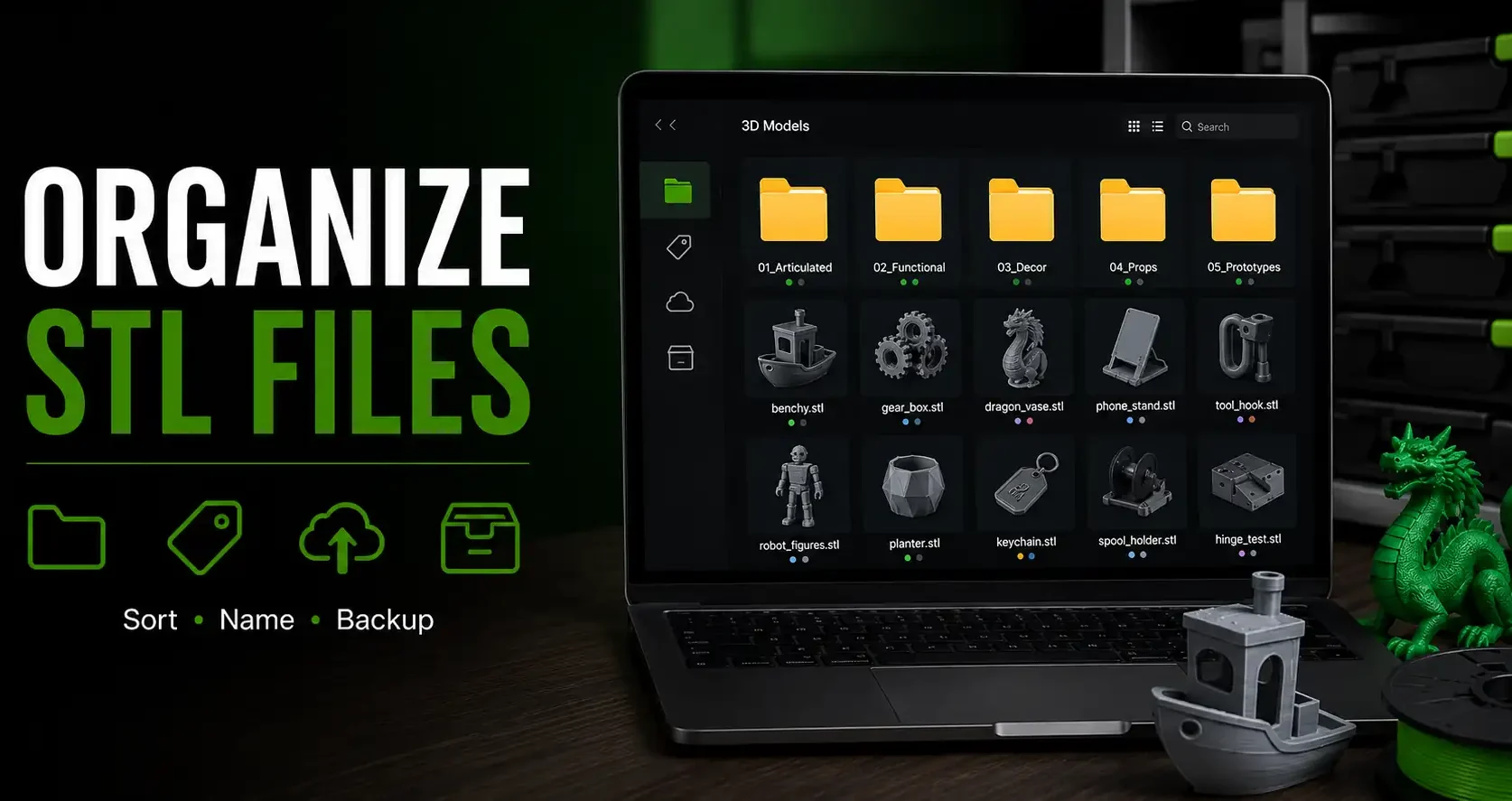
A few months into 3D printing, most makers have a Downloads folder full of STL files with names like “thing-2345678.stl” that they can’t find when they want them. An organised file library lets you find any model in 30 seconds, know which settings you used last time, and avoid reprinting something you’ve already printed and have somewhere. Here’s a system that works without over-engineering it.
The Simple Folder Structure
One top-level folder: 3D Prints. Inside it, subfolders by category matching how you actually search for files: Gaming Accessories, Cosplay Props, Dollhouse, Household, Tools and Jigs, and a WIP (work in progress) folder for files you’ve downloaded but haven’t printed yet.
Inside each category folder, one subfolder per project or model family. Name the subfolder with the model name and source (e.g. “OreKo Eldrazi Deck Box” or “Cults3D Lollipop Chain Links”). Inside that folder: the STL or 3MF files, a screenshot of the print settings you used, and optionally a photo of the finished print for reference.
Using Makerworld and Cults3D Collections
Both Makerworld and Cults3D have built-in collection and like features. Liking a file on Cults3D saves it to your profile. Creating named collections on Makerworld organises files by project. This is a good first layer of organisation before local download, particularly for files you want to revisit but haven’t printed yet.
For purchased files on Cults3D, your purchase history shows all previously bought files permanently. You can re-download any file you’ve purchased at any time, which means you don’t need to keep local copies of paid files if storage is a concern. Browse the OreKo model catalog to see all available designs to add to your collection.
Frequently Asked Questions: Storing STL Files
How should I organise my 3D printing files?
A category-based folder structure on your local drive or cloud storage works well. Group by how you search for files: by hobby category, by project, or by source. The key is consistency, not perfection. Pick a system and use it from the start.
Should I keep STL files or 3MF files?
Keep 3MF files when available. They store print settings alongside geometry, making reprinting straightforward. Keep STL as backup for files where 3MF isn’t available. If you’ve already sliced a project and saved the sliced file from Bambu Studio, that project file preserves your settings for future reference.
Is cloud storage good for STL files?
Yes. Google Drive, Dropbox, or similar cloud storage keeps your library accessible from any computer and provides backup against local drive failure. STL and 3MF files are small enough that even a large collection of hundreds of models fits in a few gigabytes.