
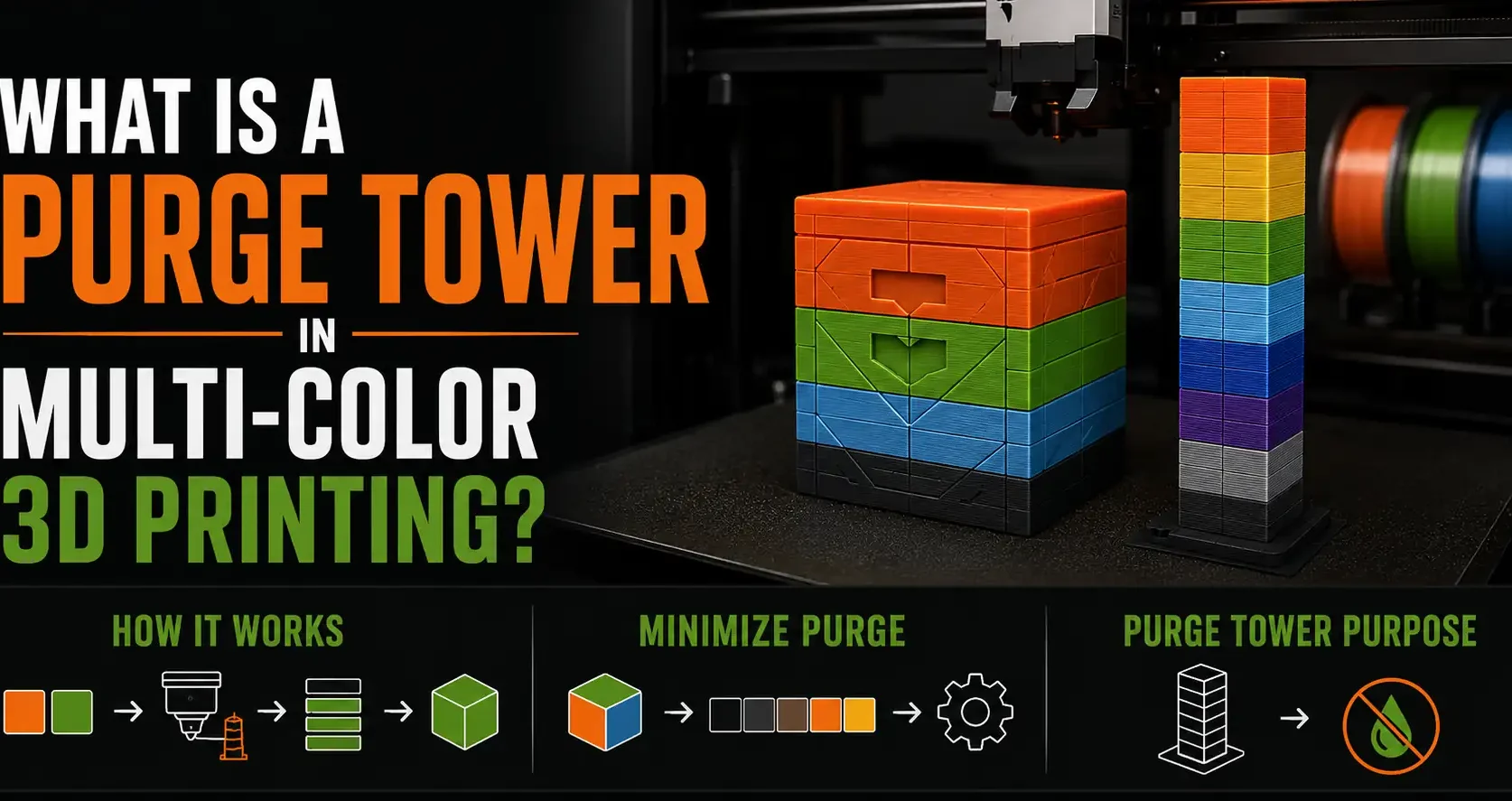
When you print a multi-color model using the AMS system on a Bambu Lab printer, a separate small tower appears beside your model on the print plate. This is the purge tower. It exists to flush the previous color out of the nozzle before the new color starts printing on your model. Without it, every color transition would leave a smear of mixed color on your print. Here is how it works and how to minimize the waste it generates.
How the Purge Tower Works
When the AMS swaps from one filament color to another, residual material from the previous color is still in the hot end. If the printer immediately continued printing the model with the new color, those first millimetres of extrusion would be a mix of old and new colors. The purge tower solves this by directing those transitional extrusions into a dedicated column away from the model. By the time the purge volume is complete, the nozzle is running clean new color and returns to print the model.
The purge tower prints as a solid rectangular column that you discard after the print. It has no functional purpose beyond flushing the transition material.
How to Minimize Purge Tower Size
The purge tower size scales with the number and frequency of color transitions per layer. A two-color deck box with one color swap per 20-30 layers generates a small purge tower. A complex multi-color design with small color regions on every layer generates a much larger purge tower that can sometimes rival the model’s own material use.
Strategies to minimize purge: design color regions as large distinct zones rather than many small patches. Arrange colors in the AMS so that transitions go from light to dark rather than dark to light where possible (dark-to-light transitions need more purge to clear the darker pigment). In Bambu Studio, adjust the flush volume settings per color pair if specific transitions are over-purging. More on multi-color AMS workflows at the multi-color deck box guide.
Frequently Asked Questions: Purge Tower
Can I print without a purge tower?
On Bambu Lab printers, you can use the purge-into-infill or purge-into-support options in Bambu Studio, which direct purge material into the print’s own infill rather than a separate tower. This works well for prints with substantial infill. For prints with low infill, the purge-into-infill option may not have enough volume to flush the nozzle cleanly.
Is purge tower waste significant?
It depends on the print. A simple two-tone deck box generates 5-15g of purge waste. A complex multi-color print with many transitions per layer can generate 50g or more. This is worth considering when planning multi-color print economics.
Why is my purge tower so large?
Either many color changes per layer (small color regions switching frequently) or the flush volume is set higher than necessary. Review your model’s color assignment in Bambu Studio and consolidate small color regions where possible. Check flush volume settings in the filament profile.