
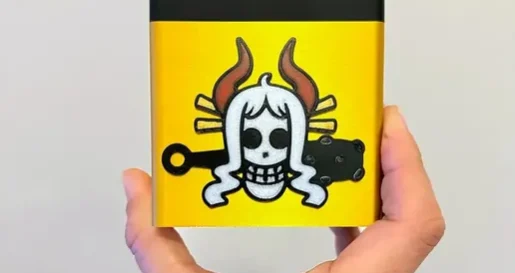
Why Bambu Lab Changed 3D Printing for Beginners
For years, getting a reliable first print out of a budget FDM printer required hours of calibration, manual bed leveling, and a lot of patience. Bambu Lab changed that.
Bambu Lab printers automate virtually every calibration task that used to be the biggest barrier for beginners. First-layer calibration, vibration compensation, flow rate calibration, bed leveling handled automatically before every print. The result is that most people get a clean first print within an hour of unboxing.
If you are new to 3D printing or shopping for your first machine, here is what you need to know about the Bambu Lab lineup before you buy.
Bambu Lab A1 Mini
Best for: Beginners, small prints, tight spaces
The most accessible Bambu Lab printer. Compact build volume (180x180x180mm), fast auto-calibration, and full compatibility with Bambu Studio. Supports AMS Lite for multi-color printing. An excellent first printer if your projects are on the smaller side.
Price range: Around $300
Bambu Lab A1
Best for: Beginners who want full-size builds
Full 256x256x256mm build volume with the same auto-calibration and ease of use as the A1 Mini. Supports the AMS for multi-color printing. The best value in the Bambu lineup for most home users who want size without premium cost.
Price range: Around $400
Bambu Lab P1S
Best for: Enthusiasts and multi-color printing
Fully enclosed chamber for printing engineering filaments, multi-color AMS system, and high print quality in a compact footprint. A strong choice for anyone serious about filament variety and print consistency.
Price range: Around $600
Setting Up Bambu Studio
Bambu Studio is Bambu Lab’s free slicer software and is tightly integrated with their printers. Here is the quick setup:
1. Download Bambu Studio from bambulab.com. It is free and works on Windows and Mac.
2. Select your printer model during first-run setup. All settings and profiles are automatically applied for your specific machine.
3. Connect to your printer via WiFi for wireless printing, or use an SD card to transfer files manually.
4. Import your STL or 3MF file. Drag and drop into the workspace. For OreKo 3MF files, all settings are pre-configured. Just review and slice.
5. Select your filament preset. Bambu Studio includes pre-tuned profiles for the most common PLA, PETG, and ABS brands. Pick the one closest to what you are using.
6. Hit Slice and review the preview. Send to printer or export to SD card.
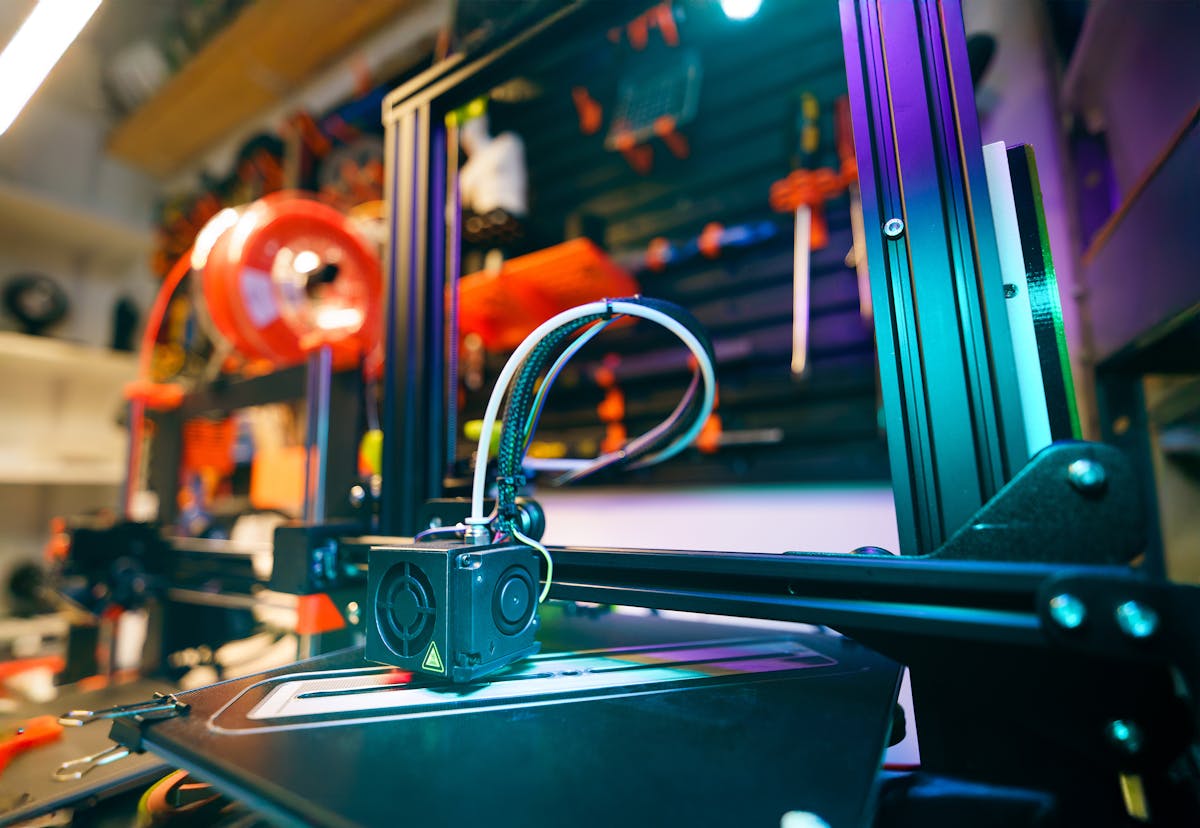
What the AMS System Does
The Automatic Material System (AMS) is Bambu Lab’s multi-filament unit. It connects to the printer and holds up to four spools, automatically switching between them during a print to produce multi-color output without manual filament changes.
For OreKo deck boxes, the AMS is the fastest path to a two-color result. The 3MF files include pre-configured color assignments: load your box body color into slot 1, your logo cap color into slot 2, hit slice, and print. The printer handles the rest.
Without an AMS, you can still get two-color results by printing the box body and logo cap as separate pieces in different colors and assembling them. Both approaches are supported by OreKo files.
Common Beginner Questions About Bambu Printers
Do I need to level the bed manually? No. Bambu printers auto-level before every print. You do not touch the bed.
What filament should I start with? Bambu brand PLA or any well-known PLA brand. The pre-tuned profiles in Bambu Studio are calibrated for Bambu filaments, but most PLA brands work well with the default Bambu PLA settings.
Can I use non-Bambu filament? Yes. Bambu Studio has profiles for most major brands, and the generic PLA profile works well with most standard PLA spools.
How often does it need maintenance? Clean the build plate after every few prints, lubricate the rods monthly, and clean the nozzle periodically. Bambu printers are lower maintenance than most due to their enclosed design and automatic calibration.
Can I print OreKo models on a Bambu A1 Mini? Yes. All OreKo STL files work on any FDM printer. The 3MF files are pre-configured and the settings translate directly to the A1, A1 Mini, and P1S.