
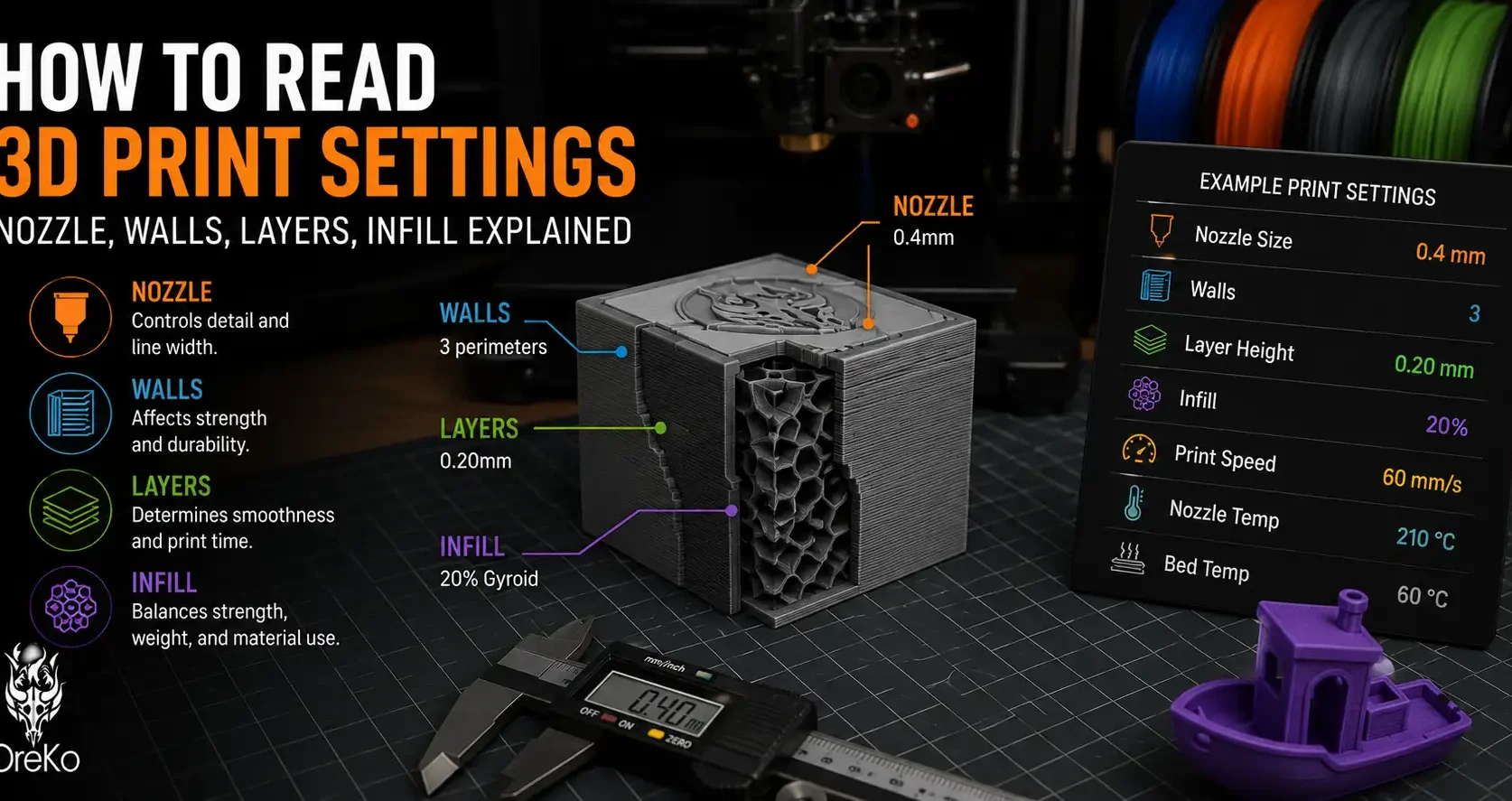
Making Sense of Print Settings
Every 3D model listing that includes print settings throws a list of numbers at you: nozzle size, layer height, wall lines, top and bottom layers, infill density. If you are new to 3D printing, that list can feel like instructions in a foreign language.
It is not complicated once you understand what each setting does. Here is the plain-English breakdown of every setting you will encounter, using the OreKo deck box settings as a real-world example.
Every Setting Explained
Nozzle Size
The diameter of the small metal tip that melts and deposits filament. The standard size is 0.4mm and it is what almost every printer ships with. Unless a model specifically requires a different nozzle size, 0.4mm is what you use. All OreKo models use 0.4mm.
Layer Height
How thick each printed layer is, in millimeters. Thinner layers mean more detail and a smoother surface but longer print times. 0.20mm is standard. 0.08-0.12mm for fine detail parts like logo caps. Covered in detail in our layer height guide.
First Layer Height
The height of just the very first layer. Usually set higher than the rest (typically 0.2mm regardless of your standard layer height) so the first layer squishes firmly onto the build plate for better adhesion. Do not change this unless you are troubleshooting bed adhesion.
Wall Lines (Perimeters / Shells)
How many loops of plastic form the outer walls of your print. 2 walls is the standard minimum. 4-6 walls for stronger functional parts. More walls add print time and strength but reduce the interior volume available for infill.
Top and Bottom Layers
The number of solid layers at the top and bottom of the print. These seal the infill pattern from view and create the flat surfaces you see on finished prints. 3-5 layers is standard. OreKo deck box caps use 9 top layers to keep the logo surface perfectly flat.
Infill Density
How solid the inside of the print is, expressed as a percentage. 10-15% for most decorative prints. 100% for small detail pieces. Covered in detail in our infill guide.
Supports
Whether the slicer should generate support structures under overhanging sections. For models marked as support-free, set this to “None” or “Off.” Do not let your slicer add supports automatically on a no-support model.
Print Speed
How fast the nozzle moves while printing, measured in mm/s. Higher speed means faster prints but can reduce quality on curves and fine details. Bambu printers default to 200-300mm/s. Older budget printers typically max at 60-80mm/s.
A Real Example: Reading the OreKo Deck Box Settings
| Setting | Box Body | What It Means |
| Nozzle | 0.4mm | Standard nozzle. No changes needed. |
| Layer Height | 0.20mm | Standard setting. Good quality at reasonable speed. |
| First Layer Height | 0.2mm | Thicker first layer for solid bed adhesion. |
| Supports | None | Turn supports OFF in your slicer. The model doesn’t need them. |
| Wall Lines | 2 | 2 perimeter loops. Standard for a light box body. |
| Top Layers | 5 | 5 solid layers on top. Seals the infill cleanly. |
| Bottom Layers | 3 | 3 solid base layers for a clean bottom surface. |
| Infill Density | 10% | Sparse interior. Walls handle the structure. Keeps weight low. |
Where to Find These Settings in Your Slicer
Bambu Studio: Process panel on the right side. Switch from Basic to Advanced mode to see all settings. Some are in the Strength tab, others in Quality.
PrusaSlicer: Print Settings tab at the top. In Simple mode, many settings are hidden. Switch to Advanced mode to access all of them.
Cura: Left sidebar when a model is loaded. Custom mode exposes all settings. Search bar at the top of the settings panel lets you find any setting by name.
What Happens If You Get a Setting Wrong
Too low infill on a small part: The top surface sags between infill lines. Logo detail gets blurry. Fix: increase infill to 100% for small pieces.
Too few top layers: The infill pattern shows through the top surface, leaving a dimpled or porous appearance. Fix: increase top layers to 5 minimum, 9 for detail-critical surfaces.
Supports left on a no-support model: Extra print time, extra material, and support marks on the surface that need cleanup. Fix: always check support settings and turn them off for no-support designs.
Wrong layer height for the detail level: Fine logo features look soft or indistinct. Fix: drop layer height to 0.12mm or lower for detail pieces.