
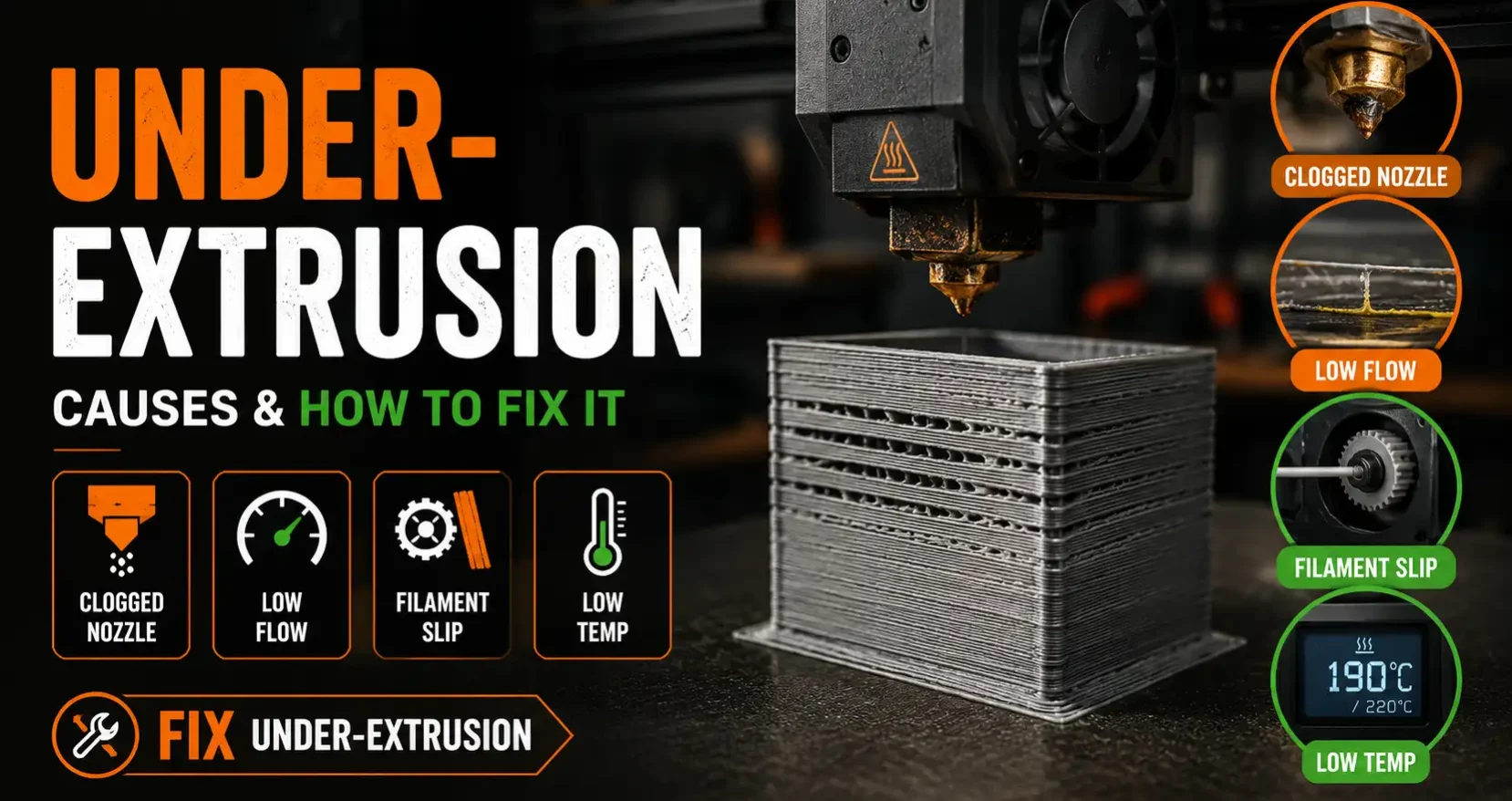
What Under Extrusion Is and How to Spot It
Under extrusion happens when your printer deposits less filament than the slicer expects. The nozzle is moving and the filament is feeding, but not enough plastic is coming out to fill the path correctly.
You will see it as gaps between infill lines, weak or porous top surfaces, missing layers partway through a print, strands instead of solid walls, and prints that feel brittle and break where they should hold. At fine layer heights like 0.12mm, even minor under extrusion shows up immediately.
It is one of the most common 3D printing problems and one of the most misdiagnosed. Most people try raising temperature or slowing the print first. Those fixes work sometimes, but the most common actual cause is a partial nozzle clog that no amount of temperature adjustment will clear. This guide covers every cause in order of likelihood, with the exact fix for each.
Diagnose It First: What to Check Before Changing Any Settings
Before touching slicer settings, run through this checklist. It will tell you which cause you are actually dealing with.
- Print a single-wall cube or flow test. A single-perimeter box printed at your current settings shows the problem clearly. If the walls have gaps or vary in thickness, under extrusion is confirmed.
- Check the extruder arm. Watch the extruder while printing. If you see it skipping, clicking, or grinding, the extruder is struggling to push filament. That points to a clog, too much resistance in the PTFE path, or worn gears.
- Check for grinding marks on the filament. Pull the filament out of the extruder and look at the surface. If the drive gear has chewed a groove into the filament rather than gripping it cleanly, the extruder is slipping.
- Smell the print. If the filament smells burnt or the print has discolored sections, temperature is too high for the material and the filament is degrading in the hotend.
- Check filament diameter. Measure the filament with calipers at several points. Cheap filament often runs thin, which reduces actual extrusion volume even when the slicer expects 1.75mm.
Cause 1: Partial Nozzle Clog (Most Common)
A partial clog is the most frequent cause of under extrusion. The nozzle is not completely blocked but something inside is restricting flow. This can be carbonized filament from printing too hot, a piece of debris, or burnt residue from switching filament types without a proper purge.
How to fix it:
Cold pull. Heat the nozzle to your normal printing temperature, then push filament through manually until clean. Drop the temperature to 90°C for PLA (or 120°C for PETG), let it cool to that temperature, then pull the filament out firmly in one smooth motion. The tip of the filament that comes out should show the shape of the nozzle interior. Repeat until the pulled tip comes out clean. This is the most effective way to clear a partial clog without disassembly.
Atomic pull (variation). Same as above but pull at a slightly higher temperature (around 100°C for PLA) for a gentler extraction that works better for stubborn clogs.
Needle cleaning. With the nozzle at printing temperature, insert a 0.35mm acupuncture needle or nozzle cleaning needle through the tip to break up the clog. Do not use a drill bit at temperature as it can damage the nozzle interior.
Replace the nozzle. Brass nozzles wear out. If your nozzle has more than a few hundred hours of printing, especially with any abrasive filaments, replacement is often faster than repeated cleaning. A new 0.4mm brass nozzle costs less than a dollar and takes two minutes to swap.
Cause 2: Temperature and Speed Mismatch
Every hotend has a maximum volumetric flow rate. If you ask the printer to extrude more filament per second than the hotend can melt, the result is under extrusion. This is almost always the cause when under extrusion only appears at higher print speeds or on large infill sections.
Temperature too low: PLA typically prints at 190-220°C. If you are at the low end and printing fast, the filament is not fully melted before it reaches the nozzle tip. Try raising temperature in 5°C increments and observe the result. Most PLA prints well at 210-215°C.
Print speed too high: A standard 0.4mm brass nozzle on a stock hotend can handle roughly 10-12mm³/s volumetric flow. If your slicer speed settings push past that, you will see under extrusion on dense infill and perimeters. Slow your outer wall speed to 40-50mm/s and infill to 80-100mm/s as a starting point.
Bambu Lab note: Bambu printers use a high-flow hotend that can handle significantly higher volumetric rates than standard hotends, which is why they print fast reliably. If you are seeing under extrusion on a Bambu machine, run the flow rate calibration in Bambu Studio (Calibration menu). A flow ratio below 0.95 or above 1.05 indicates a genuine issue worth investigating further.
Cause 3: Extruder Issues
The extruder is the mechanism that grips and pushes the filament into the hotend. If it cannot grip properly, you get under extrusion even with a clear nozzle and correct temperature.
Worn or dirty drive gear: The extruder drive gear has teeth that grip the filament. These wear down over time, especially with abrasive filaments. Remove the extruder, inspect the gear teeth, and clean any filament debris with a stiff brush. Replace the gear if the teeth look rounded or worn flat.
Extruder arm tension too low: On many direct drive extruders, a spring-loaded arm holds the idler bearing against the filament. If the spring is weak or the tension adjustment screw is backed out too far, grip is insufficient. Increase tension until the extruder grips without grinding the filament surface.
E-steps not calibrated: The extruder steps-per-mm value tells the printer how many motor steps equal 1mm of filament movement. If this value is wrong, you will either under or over extrude consistently. To calibrate: mark 100mm and 120mm on the filament above the extruder, command a 100mm extrusion, and measure what actually moved. Adjust e-steps proportionally until the movement matches the command.
Cause 4: Wet or Low-Quality Filament
Filament absorbs moisture from the air, and wet filament causes under extrusion. The moisture turns to steam inside the hotend, creates bubbles in the melt zone, and disrupts consistent extrusion flow. You will also hear popping, crackling, or hissing sounds during printing when filament is wet.
To confirm moisture: listen during printing for crackling and watch for steam or tiny bubbles at the nozzle tip.
To fix it: dry the filament. PLA dries at 45-50°C for 4-6 hours. A food dehydrator works well and holds temperature consistently. A dedicated filament dryer is better for ongoing use. An oven works in a pinch but temperature calibration matters, since most ovens run hot at their stated low temperatures.
Low-quality filament with inconsistent diameter (measuring under 1.70mm at points) causes similar symptoms without moisture being the cause. Measure a few meters with calipers. If variation is more than 0.05mm, the filament is the problem. Switch brands.
Frequently Asked Questions: Under Extrusion
What does under extrusion look like?
Gaps between infill lines, missing or incomplete layer surfaces, walls that look like they have holes or thin spots, and prints that feel weak or crumble when pressure is applied. At fine layer heights the gaps are smaller but still visible.
What is the most common cause of under extrusion?
A partial nozzle clog is the most common cause. The nozzle is not fully blocked but restricted enough that full extrusion volume cannot pass through. A cold pull will usually clear it. If under extrusion returns quickly after clearing, check temperature and speed settings.
How do I fix under extrusion on a Bambu printer?
Run the flow rate calibration in Bambu Studio first (under Calibration). If that does not resolve it, run the Bambu-specific cold pull procedure from the printer’s maintenance menu. Check the PTFE tube connection at the hotend and the AMS tube if using multi-color. If the extruder is clicking or skipping, check the nozzle for partial clogs and verify the hotend connection.
Does increasing temperature fix under extrusion?
Sometimes, if temperature is the actual cause. Raising temperature lowers filament viscosity and improves flow, which can compensate for minor restrictions. But if the cause is a clog, worn extruder gears, or wet filament, temperature adjustment will not fix it. Always diagnose the actual cause before changing settings.
What flow rate should I use for PLA?
Most slicers default to a flow rate of 1.0 (100%). This is correct for most well-calibrated printers with good quality filament. If you consistently need to run 1.05 or higher to get solid prints, the underlying cause should be found and fixed rather than compensated with a permanent flow increase.
OreKo models are designed and tested at calibrated flow settings on Bambu hardware. Print settings are documented in every product listing.