
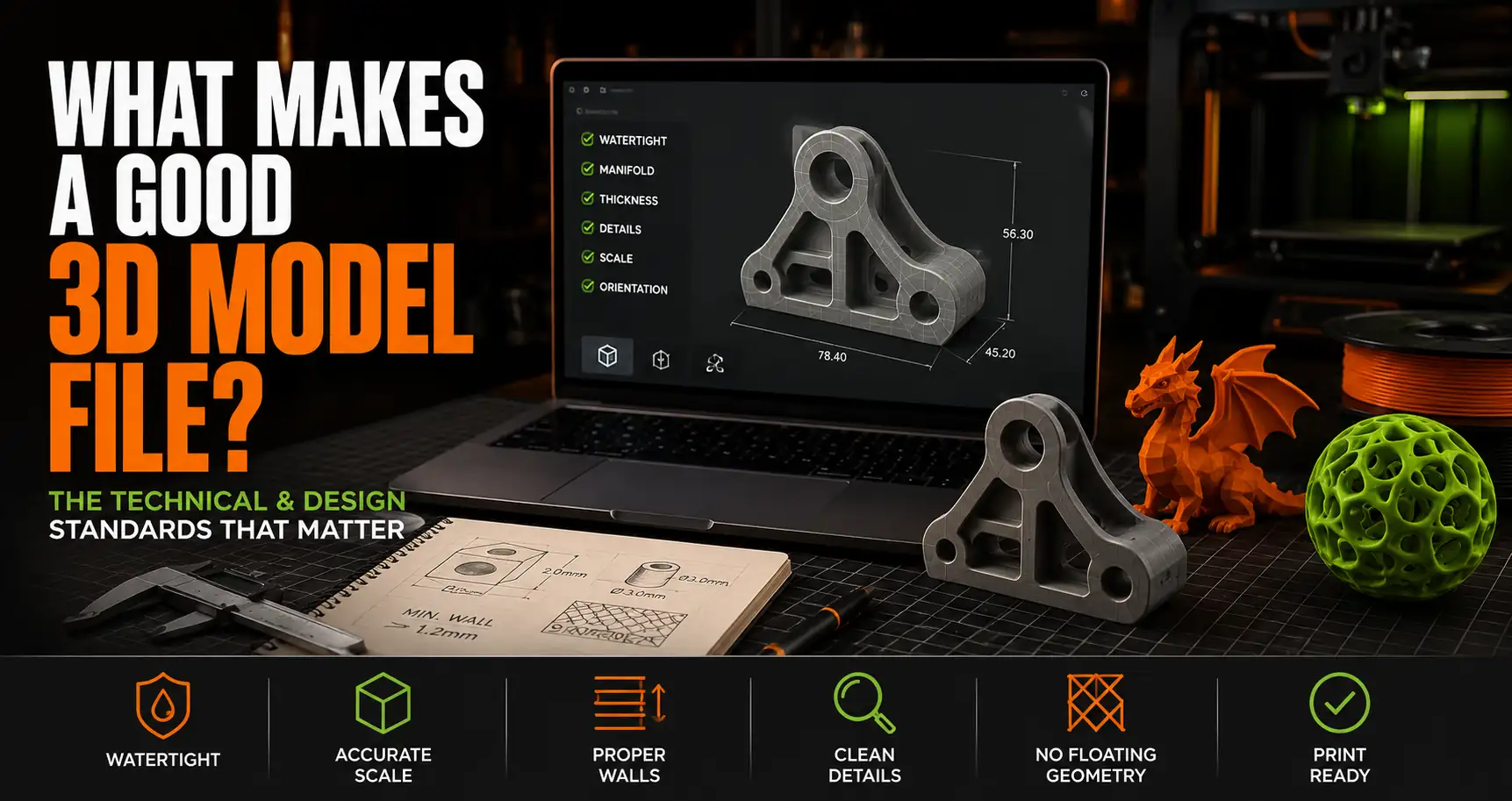
Not all 3D model files are equal. Some download, slice, and print perfectly the first time. Others require repair work, produce unexpected results, or simply fail to slice correctly. The difference almost always comes down to how the file was designed and whether it was designed with FDM printing in mind. Here are the specific qualities that separate a well-made print-ready file from a frustrating download.
Technical Requirements: Water-Tight Geometry
A print-ready file must be geometrically watertight: every surface is closed and connected, with no gaps, holes, or non-manifold edges where the mesh has impossible geometry. Non-manifold geometry (edges shared by more than two faces, or faces that intersect) causes slicers to struggle with determining what is inside versus outside the model, leading to missing walls, unexpected infill behavior, or slicing errors.
Slicers like Bambu Studio and PrusaSlicer have built-in mesh repair that handles minor issues automatically. Serious geometry errors require manual repair in Meshmixer or Netfabb before slicing. Well-designed files have none of these issues because the geometry was validated before release.
FDM-Specific Design: What Separates Print-Ready from Render-Ready
A model designed for visual rendering can have paper-thin walls, infinite detail, and geometry that physical printers cannot reproduce. A model designed for FDM printing has minimum wall thicknesses respecting the printer’s capabilities (1.2mm minimum for structural walls on a 0.4mm nozzle), overhang angles within printable limits, and details scaled to be reproduced at the nozzle diameter. The difference is immediately visible when you slice a render-optimized model: missing walls, unresolvable thin features, and support requirements everywhere.
The OreKo design philosophy centers on FDM-first geometry: every model is designed, oriented, and tested to print cleanly on a standard FDM printer without supports. The full case for support-free design is covered in the why support-free files are worth paying for guide.
Documentation: The Signals of a Responsible Designer
A well-made file comes with: real print photos (not renders), stated print settings (layer height, filament type, infill), scale or dimension information, and clear assembly instructions for multi-part files. These aren’t aesthetic extras: they’re the evidence that the designer actually printed the file and knows it works. A listing with only renders and no documentation is a red flag regardless of how good the preview looks.
Frequently Asked Questions: What Makes a Good 3D Model File?
What makes an STL file easy to print?
Water-tight geometry with no non-manifold errors, overhangs within printable limits (ideally under 45 degrees or designed out entirely), minimum feature sizes appropriate for a 0.4mm nozzle, and correct scaling for the intended application. Documented print settings and real print photos from the designer complete the picture.
How do I know if an STL file has geometry errors?
Import it into your slicer and slice it. Most slicers (Bambu Studio, PrusaSlicer, Orca Slicer) flag mesh errors in the preview and attempt repair. If the slice preview shows unexpected holes, missing walls, or strange internal structures, the file has geometry issues. For free repair, Meshmixer’s auto-repair function handles most common mesh errors.
Is a 3MF file better than an STL for print quality?
Not for geometric quality, which is the same in both formats. But 3MF files include embedded print settings that configure your slicer correctly for the design intent. This means layer height, supports, and infill are set as the designer tested them, reducing the chance of a settings mismatch causing a poor result. More at the 3MF vs STL guide.